Renew an Expired Client Secret
If a CRM connection that was working suddenly stops verifying, the most common cause is an expired client secret. Secrets are created with an expiration date (usually a year or two out), and once that date passes, the AutoMerge service can no longer connect until a new one is entered.
You do not need a new app registration or a new application user to fix this. Two steps:
What you'll need
- Azure Active Directory Admin permissions in the same Azure tenant as your CRM
- Either access to the AutoMerge Management App, or the connection's VERIFY URL from someone who does
1. Create a new client secret in Azure
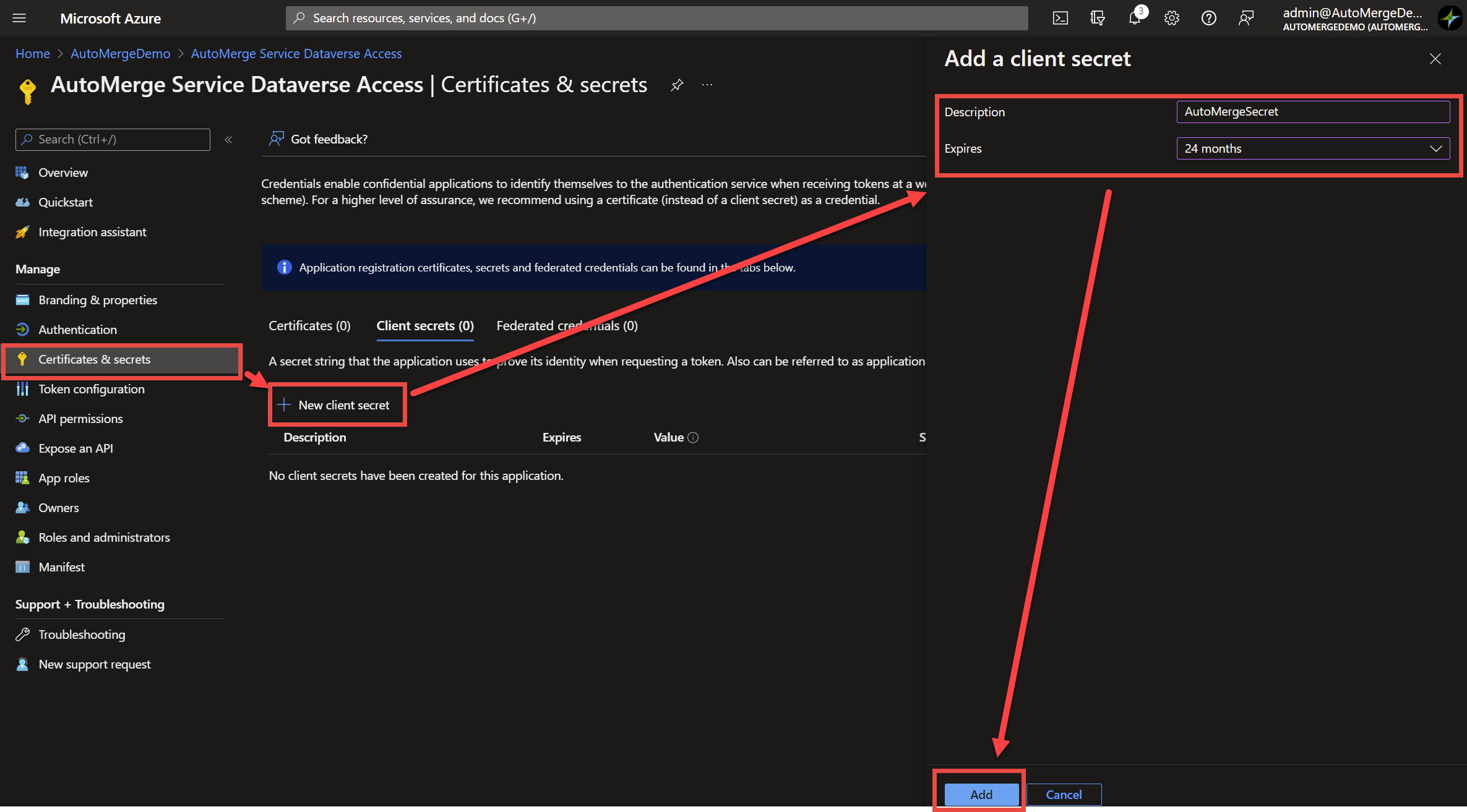
Sign in to portal.azure.com and open the same app registration used for this connection. Go to Certificates & secrets → New client secret. Give it a descriptive name and an expiration at least 12 months out.
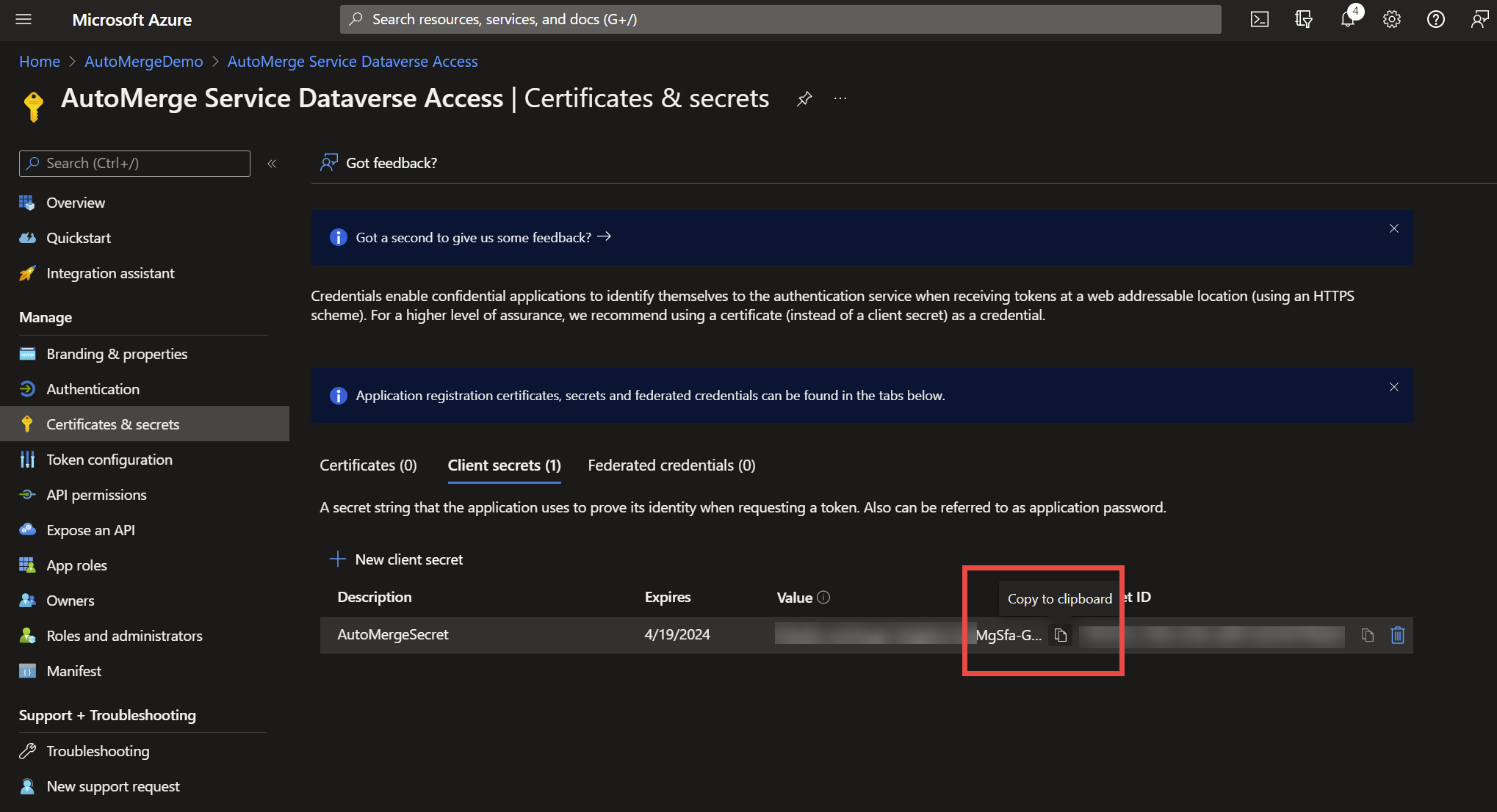
Find the new secret and copy its Value right away.
Once you browse away from this page the value is no longer visible. Copy it before you navigate anywhere else.
2. Update it in the Management App
Open the CRM connection record and use its VERIFY URL to enter the new secret. Click 1. Verify Connection, then 2. Update CRM Connection to save it back onto the connection record.
If you enter the secret's expiration date here, you'll get a reminder email before it expires so you can update it in time.
That's it. The AutoMerge service can reach this organization again.
Setting up a connection for the first time? See Create an Azure App User for the Service Connection.
Was this page helpful?