"AM Contact Dupes" List Views
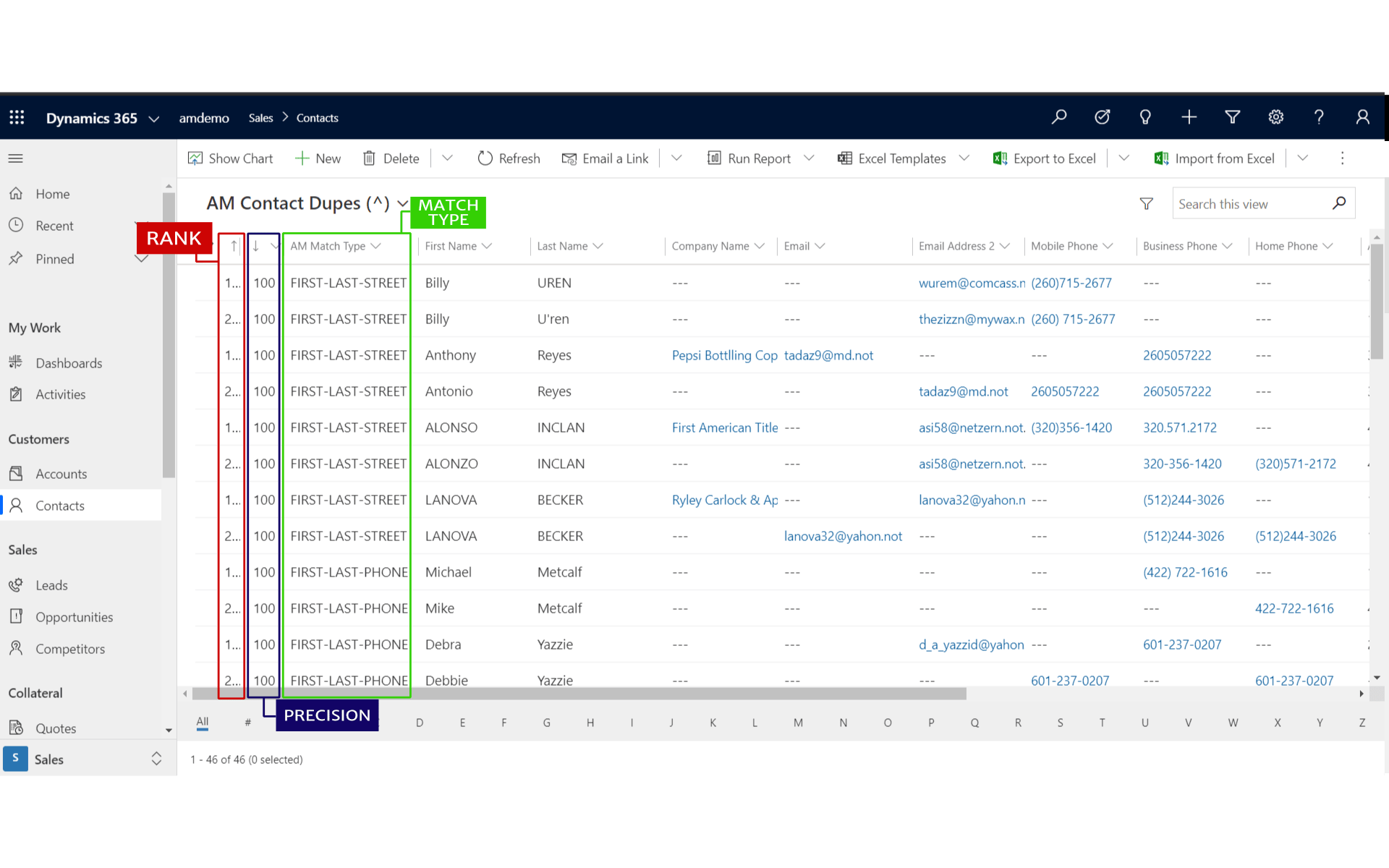
The AM Contact Dupes views group your duplicate records and give each grouping/set a rank, so you can review duplicate contacts in Dynamics 365 before merging them. Each set has 2 or more records, all of which can be AutoMerged with a single mouse click.
| View | Sort order |
|---|---|
| AM Contact Dupes (^) | High-precision sets at the top |
| AM Contact Dupes (v) | Low-precision sets at the top |
To open either view, go to your Contacts and switch the view selector to AM Contact Dupes (^) or AM Contact Dupes (v).
Understanding the columns
1. Rank
The record with a Rank of 1 is the winner-designate. It remains active after the merge, but disappears from this list view of duplicates once you AutoMerge the set.
2. Precision
After the analysis finds the duplicate sets, it compares a configurable set of fields across all records of the set to determine a Precision %. Precision ranges from 0 (loosely matched) to 100 (closely matched).
3. Match Type
This column tells you how the match was first found. Records in a duplicate set may match in several ways, but this field reports only one of them: the first match rule that applied.
These views may not include every field you want to compare. Make a copy of the default view either as a System View (requires System Administrator privileges) or as an Advanced Find, and add whatever columns help you validate the sets.
Do not change the sort order or the filtering on your copy. Doing either can split a duplicate set across what you actually see, while AutoMerge still merges the whole set behind the scenes. See Customizing the views for why.
Letting non-admin users AutoMerge
The AutoMerge button isn't visible to regular end users by default. Assign them the AutoMerge User security role, which carries only the single privilege needed to show the button in the command bar above the duplicate list views.
That grant controls whether the button appears. It does not grant the security privileges to merge.
Actual merge privileges come from each user's own CRM security roles. The reliable test: if a user can already perform an out-of-the-box merge without a privilege error, they'll be able to AutoMerge too. If they can't, exposing the button just gives them a button that fails.
A merge cascades through every related record on the account, contact, or lead, so the user needs privileges across all of that related data, not just the record itself. No single security role can guarantee a privilege-error-free merge, especially with a customer's own custom tables. The only sure fix: run merges as a System Administrator.
Was this page helpful?