AutoMerge Settings Records
The managed solution installs a table called AutoMerge Settings. Its records tell the AutoMerge plugin how to behave during a merge, for each of the three tables it supports: Account, Contact, and Lead.
How to find them
Run an Advanced Find against the AutoMerge Settings table and fetch all results. A typical org has about 20 records: six per table (Account, Contact, Lead) plus one for the license key and one for Other Settings.
Alternatively, if you have admin access to the AutoMerge App included with the managed solution (visible to admins by default), its left navigation has an AutoMerging Settings section with a Settings link that takes you straight to the same list.
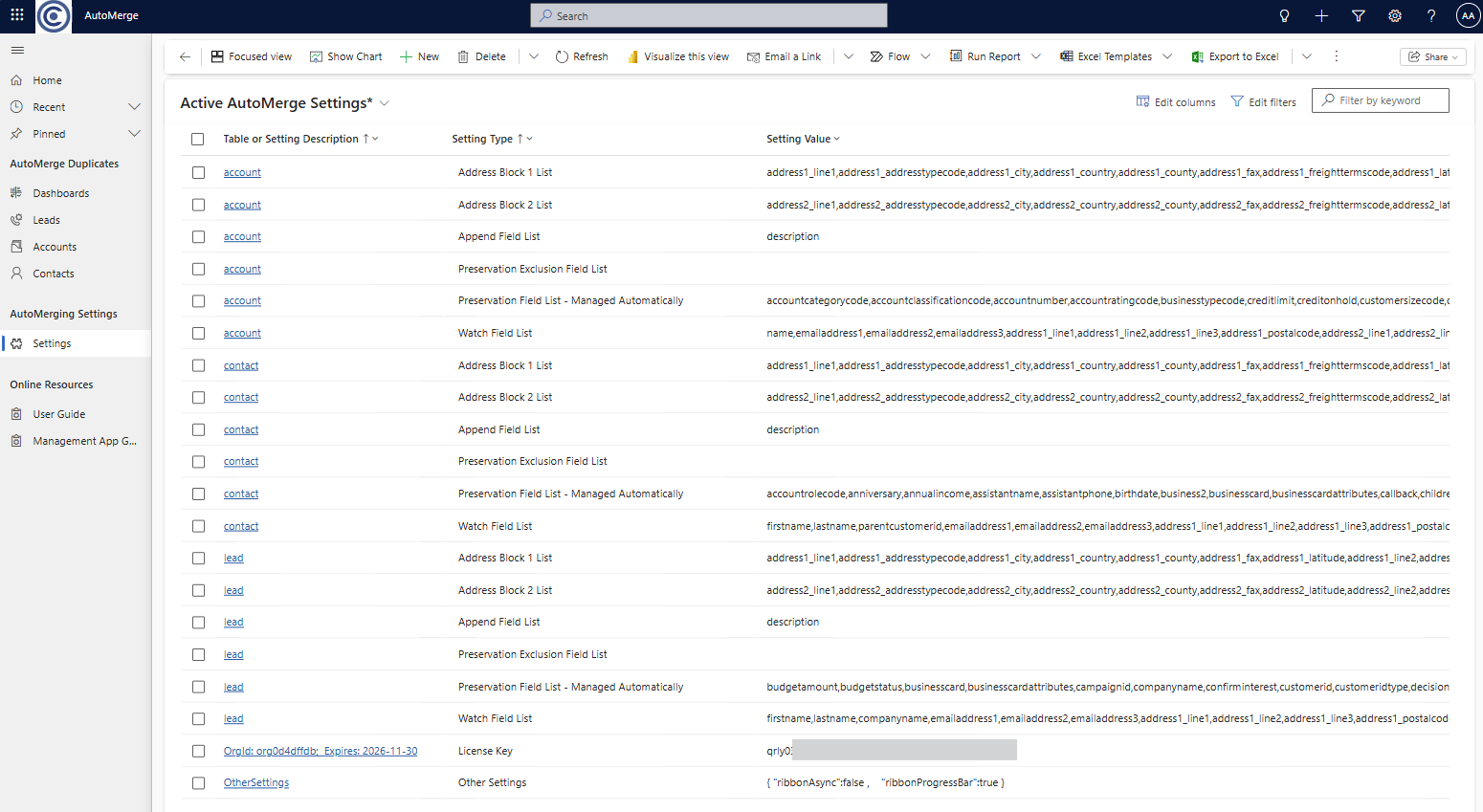
These records are not created when the managed solution is first installed. They're populated with default values the first time an analysis request runs. If you don't see them yet, run an analysis first.
Per-table settings
For each of Account, Contact, and Lead there are six settings types below.
Address Block 1 List / Address Block 2 List
A comma-separated list of schema names for one address block's fields (line 1, line 2, city, state, zip). Each table can have up to two independent address blocks tracked this way.
The first field in the list is the trigger field for the whole block:
- If the winner's trigger field is populated, the winner's address block is kept as-is.
- If the winner's trigger field is empty and the loser's is populated, the entire block is copied from the loser to the winner, all fields together, not one at a time. This is intentional, even though it can overwrite values already on the winner in other fields of that block. Copying the whole block as a unit avoids ending up with a mismatched address made of line 1 from one record, city from another, and state from a third.
By default the trigger field is address1_line1 (or address2_line1): the field a real address is most likely to have filled in first, which makes it a reliable stand-in for "is this address block valid." A customer can reorder the list to make a different field the trigger.
Append Field List
A comma-separated list of fields where values are combined instead of replaced. By default this holds only description.
For each field in the list, the plugin appends the loser's value onto the winner's, in rank order, separated with a vertical bar (|), rather than choosing one over the other. This matters most for a multi-line notes field like Description, where a CRM user's notes on the loser shouldn't be silently discarded.
For example, three contact records about to be automerged might each have their own Description:
- Winner:
Prefers an email over a phone call. - Loser (Rank 2):
Attended the March webinar. - Loser (Rank 3):
Follow up after Q3 budget approved.
After the merge, the winner's Description reads:
Prefers an email over a phone call.|Attended the March webinar.|Follow up after Q3 budget approved.
Preservation Field List (Managed Automatically) / Preservation Exclusion Field List
These two work together to control standard field preservation (see Complex Field Preservation for the underlying mechanism):
- Preservation Field List (Managed Automatically) is auto-populated with every metadata field on the table, minus the address block fields and anything in the Append Field List. It's kept in sync automatically as fields are added or removed from your system, you don't maintain it by hand.
- Preservation Exclusion Field List is empty by default. To stop a specific field from being preserved during a merge, add its schema name here (for example,
middlename). Doing so automatically removes that field from the managed list above.
This is manage-by-exception: most customers never need to exclude a field, but the option exists for narrow cases where you don't want a loser's value carried over.
Watch Field List
Present for completeness only. This setting supports functionality that was never completed and can be treated as obsolete.
One-off settings
Two settings types exist once per org rather than once per table.
License key
Tracks your AutoMerge license. This is managed automatically by AutoMerge support through the management app, you don't need to maintain it yourself.
The license key is an encoded string tied to your org's unique name/ID and an expiration date. If you refresh or copy your production org down into a sandbox, the sandbox's license gets overwritten with the production one and AutoMerge would then stop working on that Sandbox org. This typically only affects sandboxes, not production. If it happens, ask AutoMerge support to push a valid license back to the sandbox. Or if you remember, copy the sandbox's license key before it gets overwritten by the production license, and replace it after the org copy completes.
Other Settings
A JSON string of additional internal settings that guide the plugin's behavior. You don't need to understand or edit its contents.
Was this page helpful?