Viewing and Editing Potential Duplicates Before AutoMerging
The duplicate list views are a great way to validate and merge many duplicate sets at once, but that work is usually a one-off activity performed by someone who doesn't own or work with the records on a daily basis.
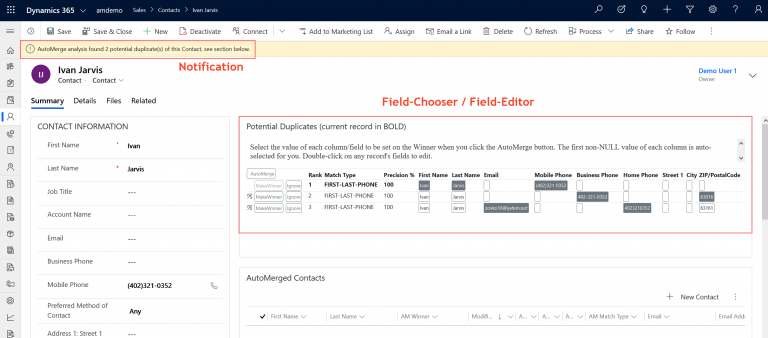
The Potential Duplicates web resource takes the opposite approach: it flags potential duplicates to your end users in the course of their daily work, right on the form.
Why put duplicates on the form
The best reason to surface duplicates this way: end users can clean up records as they come across them in their daily work, right when they have the context to fix the data correctly. A salesperson gets a call, looks the contact up, and finds three records; the Potential Duplicates subgrid lets them fix the data on the spot, because they have the actual customer on the phone at that moment. As you'll see below, they can either choose which fields to preserve across the whole duplicate set, or edit individual values on any of the records directly.
Surfacing duplicates on the form lets them act at the moment they encounter the problem. The alternative, an IT or analyst-type person working through them en masse from a list view, is not politically feasible in many organizations, however efficient it may be.
What users can do from the subgrid
The record you're currently viewing is shown in bold, alongside a notification banner and the same three buttons as the list views:
| Action | Effect |
|---|---|
| Make Winner | Promotes this record to Rank 1. See Set Primary |
| Ignore | Removes the record from its set and future analyses |
| AutoMerge | Merges the set from here, no list view needed |
A few things beyond the list views make the subgrid worth having on the form:
- Jump to another record. An arrow icon on the far left of each row, before the Make Winner button, opens that record so the user can look at it directly before deciding. If the user lands on one of the loser-designates (Rank > 1), they'll usually want to jump straight to the winner-designate instead.
- Field chooser to force preservation of that particular value during the AutoMerge. Each column shows every duplicate's value for that field as a selectable button. By default, the first record, in rank order, with a non-null value is pre-selected for you. Users can pick a different record's value for any field, then press the small AutoMerge button at the top left of the subgrid to apply the field preservation selections and merge the set. The first time a user does this, it can take a few seconds: Dynamics needs to cache the AutoMerge plugin code before it runs. Navigating away before clicking AutoMerge loses those selections; they aren't saved.
- Fields are editable inline. Double-click any field to edit it directly in the grid; the change applies as soon as you leave the field. Editing a field's value doesn't select it to win the merge, those are two separate actions.
Single-click to designate a field for preservation, and double-click to edit the value directly. Fields not defined in this subgrid, and so not available to choose a value for, are preserved the same way as in the list-view AutoMerge: non-empty values on losing records fill any empty fields on the winner.
Why you can't see it yet
The subgrid ships on the "AutoMerge" form in our managed solution, and that form is visible only to users with Administrator or Customizer privileges.
That's deliberate, not an oversight. It keeps the component hidden from end users until you've decided how and where to expose it to them, rather than surfacing duplicate warnings on everyone's forms the moment the solution is imported.
Getting it onto your forms
Someone with customization privileges places the web resource on the forms your organization actually uses, the same step required for the AutoMerged records subgrid.
Customizing the subgrid with the Custom Parameters JSON
The subgrid is fully customizable, including which fields (columns) appear when comparing potential duplicates, all through one place: the Custom Parameters (data) field you fill in when you add the web resource to a form. The JSON you put there tells the web resource which fields to show, how to label the buttons, and how to filter and order the records.
Here's an example, customizing a Contact form:
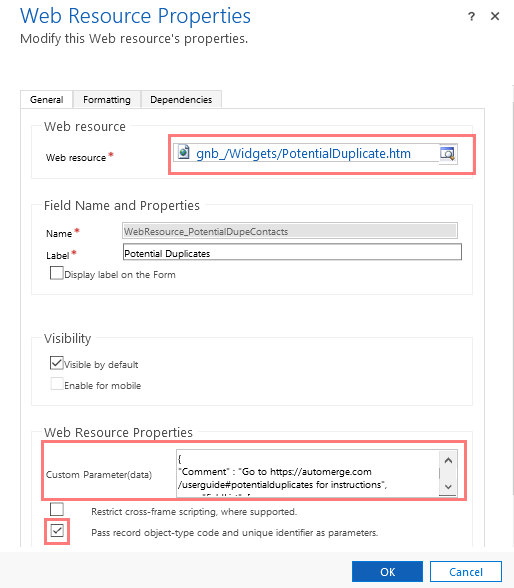
Default Custom Parameter(data) JSON for Contact forms
{
  "Instructions": "https://automerge.com/pds",
  "targetEntityLogicalName": "contact",
  "fieldList": [
    ["Rank", "gnb_automergerank"],
    ["Match Type", "gnb_automergematchtype"],
    ["Precision %", "gnb_automergematchprecisionsingle"],
    ["First", "firstname"],
    ["Last", "lastname"],
    ["Email", "emailaddress1"],
    ["Mobile", "mobilephone"],
    ["BizPhone", "telephone1"],
    ["Street 1", "address1_line1"],
    ["City", "address1_city"],
    ["ZIP", "address1_postalcode"]
  ],
  "rowSize": "md",
  "showCurrentRecord": true,
  "isClickable": true,
  "openRecordNewWindow": false,
  "autoMergeButtonText": "AutoMerge",
  "ignoreButtonName": "Ignore",
  "setPrimaryButtonName": "MakeWinner",
  "orderFields": [
    ["gnb_automergerank", "asc"],
    ["gnb_automergematchprecisionsingle", "desc"]
  ],
  "notificationText": "AutoMerge found {0} potential duplicate(s).",
  "queryParameters": [
    {"Filter1": "gnb_automergetag", "FilterType1": "String", "FilterValue1": "##gnb_automergetag"},
    {"Filter2": "statecode", "FilterType2": "OptionSet", "FilterValue2": "0"},
    {"Filter3": "gnb_automergematchprecisionset", "FilterType3": "Number", "FilterOperator3": "ge", "FilterValue3": "80"}
  ]
}
Default Custom Parameter(data) JSON for Account forms
{
  "Instructions": "https://automerge.com/pds",
  "targetEntityLogicalName": "account",
  "notificationText": "AutoMerge found {0} potential duplicate(s).",
  "fieldList": [
    ["Rank", "gnb_automergerank"],
    ["Match Type", "gnb_automergematchtype"],
    ["Precision %", "gnb_automergematchprecisionsingle"],
    ["Name", "name"],
    ["Email", "emailaddress1"],
    ["MainPhone", "telephone1"],
    ["OtherPhone", "telephone2"],
    ["Street 1", "address1_line1"],
    ["City", "address1_city"],
    ["ZIP", "address1_postalcode"]
  ],
  "rowSize": "md",
  "showCurrentRecord": true,
  "isClickable": true,
  "openRecordNewWindow": false,
  "autoMergeButtonText": "AutoMerge",
  "ignoreButtonName": "Ignore",
  "setPrimaryButtonName": "MakeWinner",
  "orderFields": [
    ["gnb_automergerank", "asc"],
    ["gnb_automergematchprecisionsingle", "desc"]
  ],
  "queryParameters": [
    {"Filter1": "gnb_automergetag", "FilterType1": "String", "FilterValue1": "##gnb_automergetag"},
    {"Filter2": "statecode", "FilterType2": "OptionSet", "FilterValue2": "0"},
    {"Filter3": "gnb_automergematchprecisionset", "FilterType3": "Number", "FilterOperator3": "ge", "FilterValue3": "80"}
  ]
}
Default Custom Parameter(data) JSON for Lead forms
{
  "Instructions": "https://automerge.com/pds",
  "targetEntityLogicalName": "lead",
  "notificationText": "AutoMerge found {0} potential duplicate(s).",
  "fieldList": [
    ["Rank", "gnb_automergerank"],
    ["Match Type", "gnb_automergematchtype"],
    ["Precision %", "gnb_automergematchprecisionsingle"],
    ["First", "firstname"],
    ["Last", "lastname"],
    ["Company", "companyname"],
    ["Email", "emailaddress1"],
    ["Mobile", "mobilephone"],
    ["BizPhone", "telephone1"],
    ["Street 1", "address1_line1"],
    ["City", "address1_city"],
    ["ZIP", "address1_postalcode"]
  ],
  "rowSize": "md",
  "showCurrentRecord": true,
  "isClickable": true,
  "openRecordNewWindow": false,
  "autoMergeButtonText": "AutoMerge",
  "ignoreButtonName": "Ignore",
  "setPrimaryButtonName": "MakeWinner",
  "orderFields": [
    ["gnb_automergerank", "asc"],
    ["gnb_automergematchprecisionsingle", "desc"]
  ],
  "queryParameters": [
    {"Filter1": "gnb_automergetag", "FilterType1": "String", "FilterValue1": "##gnb_automergetag"},
    {"Filter2": "statecode", "FilterType2": "OptionSet", "FilterValue2": "0"},
    {"Filter3": "gnb_automergematchprecisionset", "FilterType3": "Number", "FilterOperator3": "ge", "FilterValue3": "80"}
  ]
}
Date fields and lookup/GUID fields aren't implemented in this component yet. Leave them out of fieldList for now.
Filter3 in queryParameters limits the subgrid to sets at or above a given Precision % (gnb_automergematchprecisionset, here 80). End users usually don't know what "precision" means, and merging a low-precision set that turns out to be a false match is hard to undo, so keeping FilterValue3 at 80 or higher is prudent: it keeps the subgrid limited to sets you're confident enough to let end users merge on their own.
Was this page helpful?