Customizing "AM Contact Dupes" Views
Make a copy of one of the AM Contact Dupes views and add your own columns to help you validate the duplicate sets and confirm the sets are sorted properly.
Adding columns is safe. Changing filters or sorting is not. See the warning below.
Steps
While on the AM Contact Dupes view:
- Click the Advanced Find button (funnel icon) at the upper right.
- In the new window, switch Use Saved View: to AM Contact Dupes.
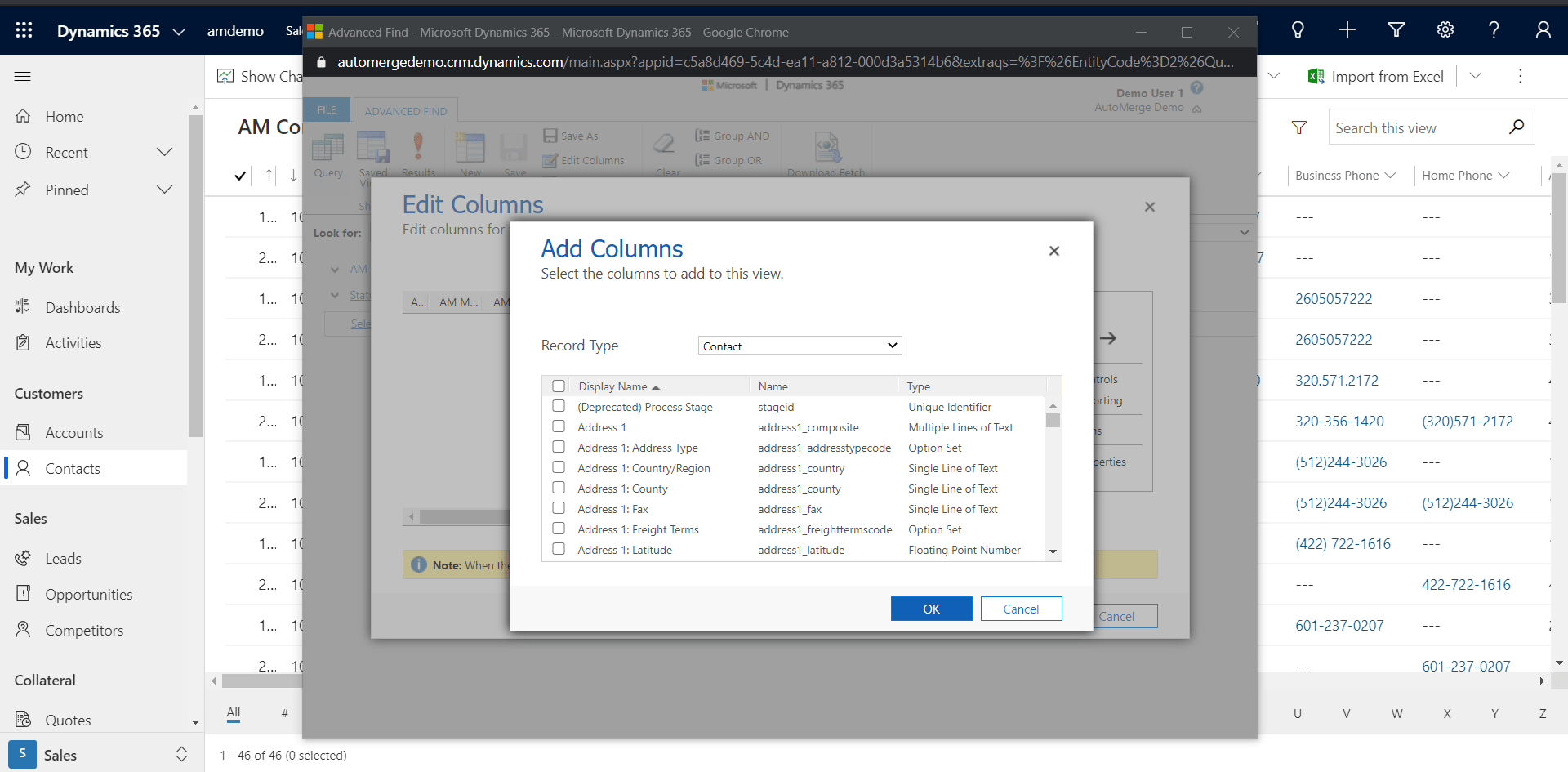
- Click Edit Columns and add columns as necessary. Click OK to close the Add Columns dialog.
- Click OK to close the Edit Columns dialog.
- Click Save As and give your new personal view a name.
- Return to your main window and press F5 to see your new personal view in the list.
Never change the filters or the sorting
Changing a duplicates view's Filters or Sorting does not simply make the display untidy. It can cause a merge you did not intend and cannot reverse.
If a view's filter is not satisfied by every record in a duplicate set, you see only part of that set. Changing the sort order can just as easily scatter a set's records across different pages or push some out of view entirely, so you may only ever see part of a set at a time. Either way, clicking AutoMerge still merges every record actually tagged in the set, including the ones you never scrolled to or that the filter hid from you.
The result is a merge performed with no visual validation, on records you never laid eyes on. Adding columns is the only customization we condone: never change what a view shows or what order it shows it in.
The narrow exception: filtering on a set-level field
There is one safe way to filter: on a field whose value is identical across every record in a duplicate set, such as Precision Set or # records per set. Filtering on one of these can only exclude or include whole sets at once. It never splits a set, because every record in it shares the same value.
Every other field on a duplicate record, name, email, owner, and the rest, can differ from one record to the next within the same set. Filtering on any of those is exactly what causes the problem above: it can hide some members of a set while leaving the rest, including the ones you no longer see, still tagged and still merged when you click AutoMerge.
If you are not certain a field's value is constant across a whole set, do not filter on it.
There is no undo
Merges cannot be reversed, not with AutoMerge and not with Dynamics' native merge either. Losing records are deactivated rather than deleted, so their data is still reachable through merge history, but the winner cannot be restored to its pre-merge state.
That is the reason this warning is worded as strongly as it is.
Scope which records get merged with FetchXML, not with views
If your goal is to limit AutoMerge to a subset of your data (one business unit, one industry, one segment), do not try to achieve it by filtering a CRM view.
Use the FetchXML filter on the analysis-rules record in the Management App instead. It scopes the analysis itself, so duplicate sets are never tagged outside the records you intended, and there is no mismatch between what you see and what gets merged.
See Filtering records with FetchXML.
Add as many columns as you find useful. Leave filters and sorting exactly as they came.
Was this page helpful?