Viewing Your Customer Profile
Once you log in to the AutoMerge Management Application, you will see your customer record.
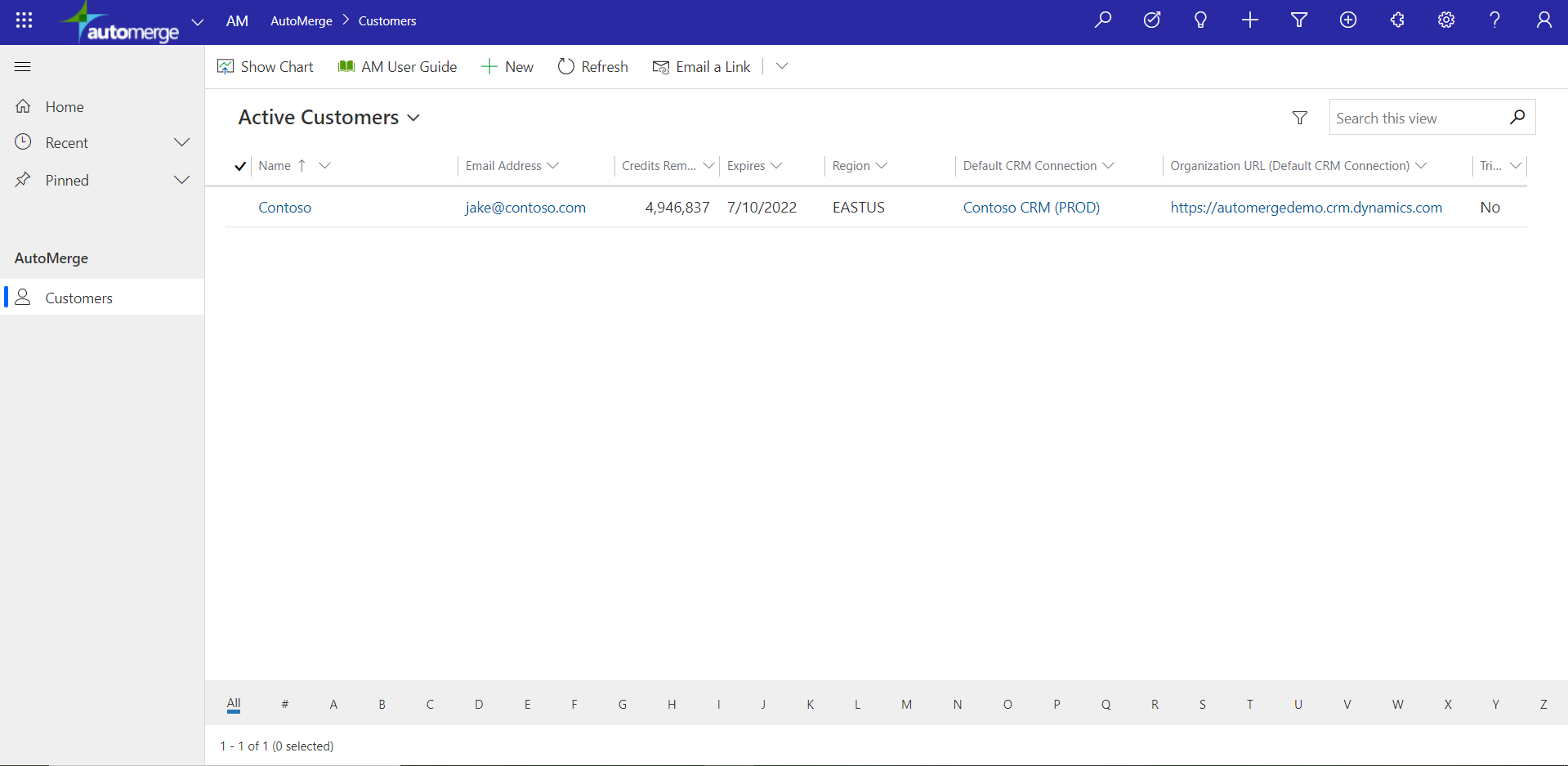
Click your customer record to open your organization's main profile.
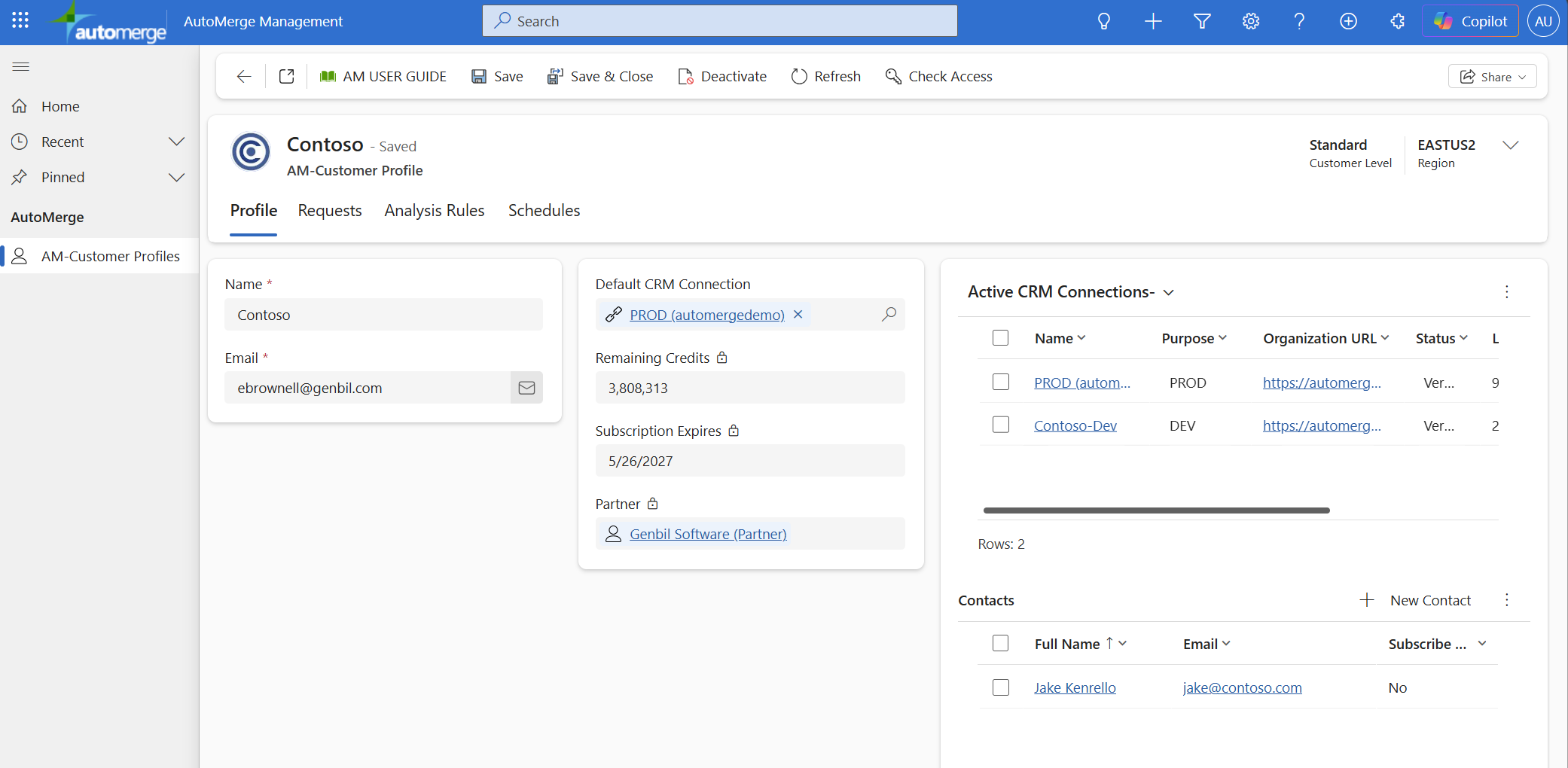
What the profile contains
Your organization's main profile includes:
- Your organization name
- A contact email address: the default recipient of Analysis Request summaries. When a new request completes, an email is sent here by default.
- A default CRM connection to use for new requests
- Remaining Credits and Subscription Expires: read-only, managed by Genbil
- Partner, if you were referred in by a Microsoft Dynamics partner
The default CRM connection is the one that will be pre-selected when you submit a new analysis request. Set it to your Production connection once your rules are stable, and to a Sandbox connection while you are still tuning them.
Two grids sit alongside the profile fields:
- Active CRM Connections: every connection registered for your organization, with its purpose, organization URL, and status.
- Contacts: additional people at your organization. Each contact's Subscribe column controls whether they also receive Analysis Request completion emails, alongside the profile's default contact email.
Creating a new CRM connection
From your customer profile record, click the + New CRM Connections button. See Connecting to your CRM.
Was this page helpful?