Complex Field Preservation via Workflow Rules
The AutoMerge plugin's default preservation is simple: for every field in the preservation list on the AutoMerge Settings record, if the winner's field is empty and a loser's is populated, the loser's value is copied across.
That covers most cases. This page covers the case it doesn't.
For the concept and when you need it, see Complex field preservation in the user guide. This page is the implementation.
The scenario
- The winner has
emailaddress1populated. - A loser has a different value in
emailaddress1. - The winner's
emailaddress2is empty.
Default preservation skips it, because the winner's field is already occupied, and the loser's email survives only on the deactivated record.
You want it moved into emailaddress2. That takes a workflow rule running in the context of the loser as it's merged.
Step 1. Create the workflow
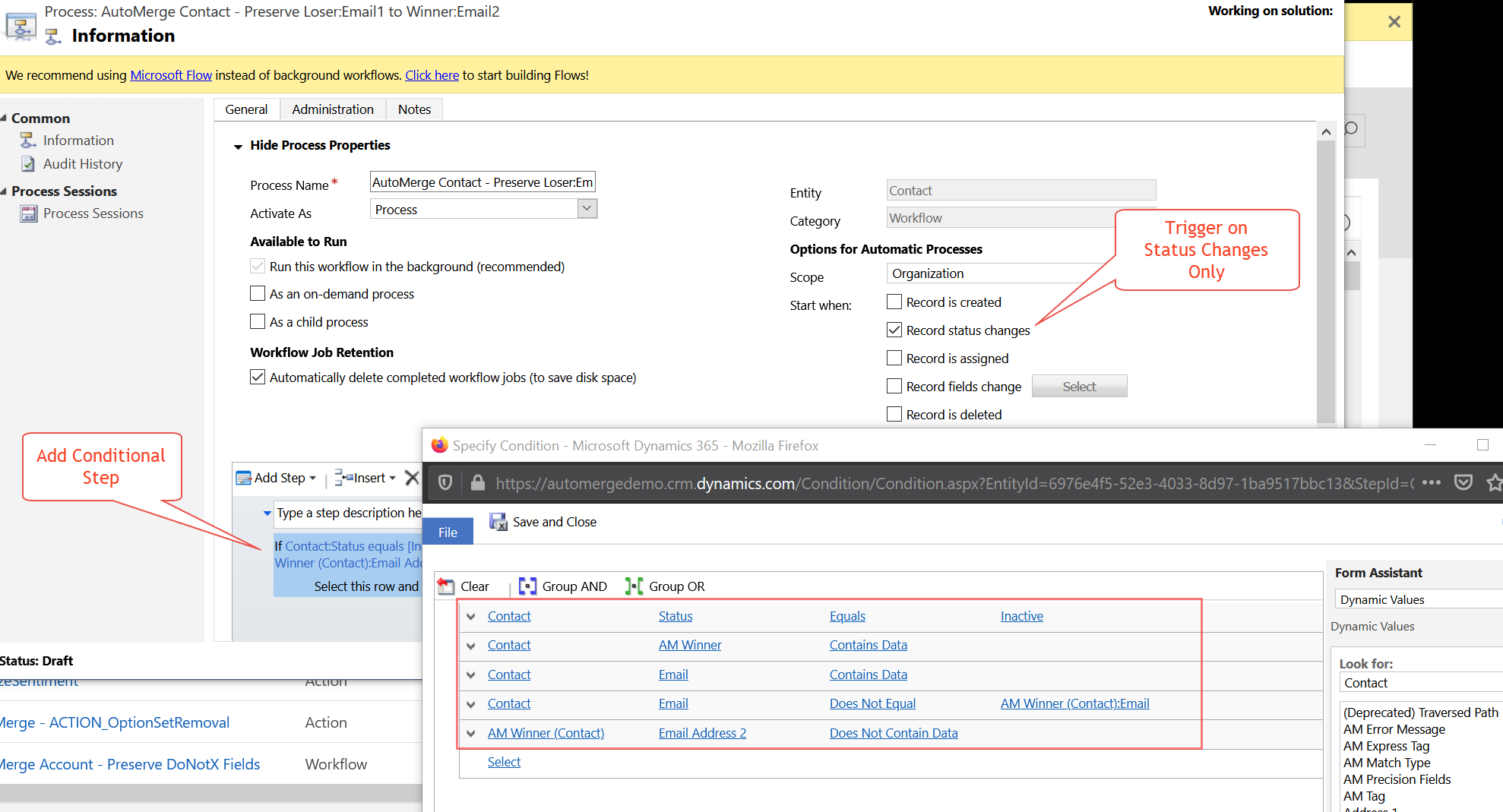
Go to Advanced Settings → Processes and create a new Workflow type process on the table in question.
Un-check "Run this workflow in the background."
With three or more records in a duplicate set, you need the Rank 2 loser's values preserved before the Rank 3 loser's. Asynchronous jobs give you no ordering guarantee. This slows the merge slightly and there's no way around it.
Step 2. Trigger and conditions
Trigger the workflow on status changes only, and add a Check Condition step.
The first two conditions ensure the rule runs only for the losing record:
Contact Status            Equals         Inactive
Contact AMWinner          Contains Data
Then add conditions for the specific field you're preserving:
Contact Email                          Contains Data          (this is the loser)
Contact Email                          Does Not Equal         AM Winner (Contact) Email
AM Winner (Contact) Email Address 2    Does Not Contain Data
That last condition is what stops you overwriting a populated emailaddress2 on the winner. Adjust to your needs.
Step 3. The update action
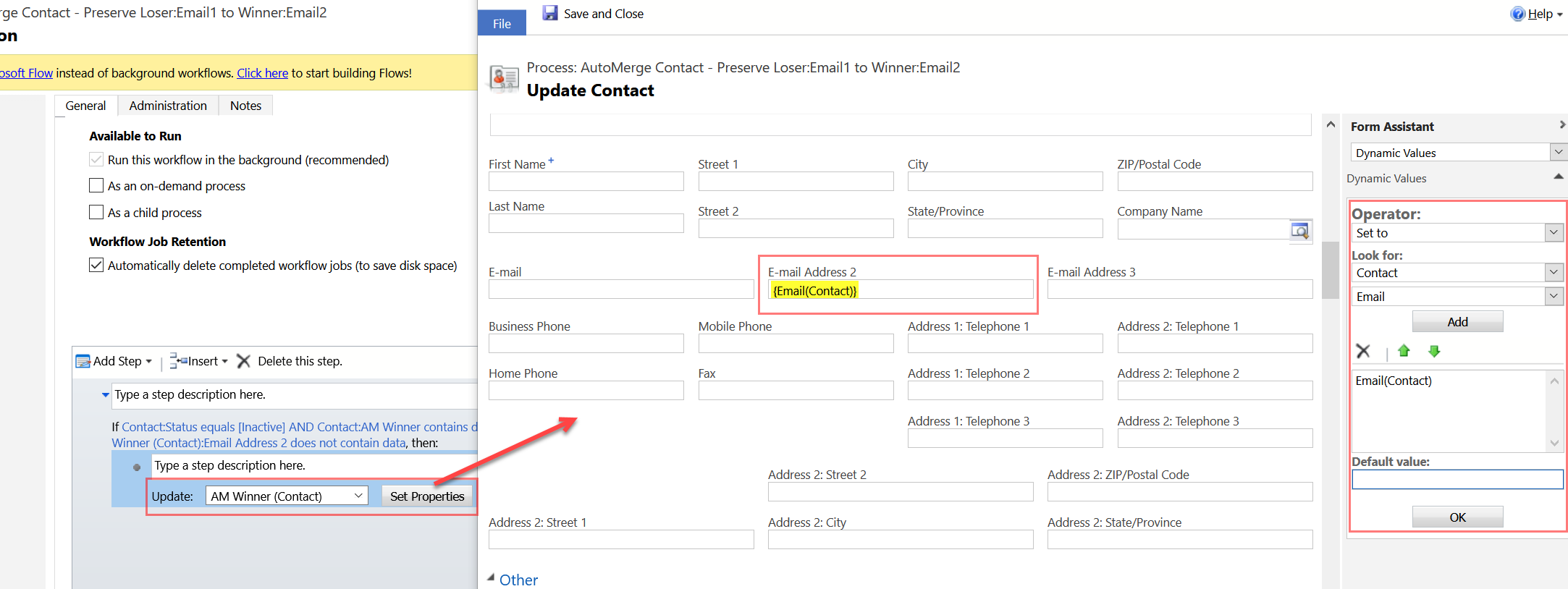
Inside the IF conditional, update the winner's Email Address 2 with the loser's Email.
Step 4. Save and activate
This workflow executes after the AutoMerge plugin has already done its own field preservation. If your conditions compare against fields on the winner, understand that those fields may have just been populated by the plugin moments earlier.
Test thoroughly before mass-automerging.
Preserving several fields
Use one workflow rule. Put the first two conditions (loser is inactive, AMWinner contains data) in an outer IF conditional, then add a parallel inner IF conditional per field, each with its own three-condition check like the ones above.
Going further
You can also check whether the winner's emailaddress2, though populated, holds the same value as its emailaddress1, and overwrite it with the loser's email in that case.
Was this page helpful?