Ranking Rules
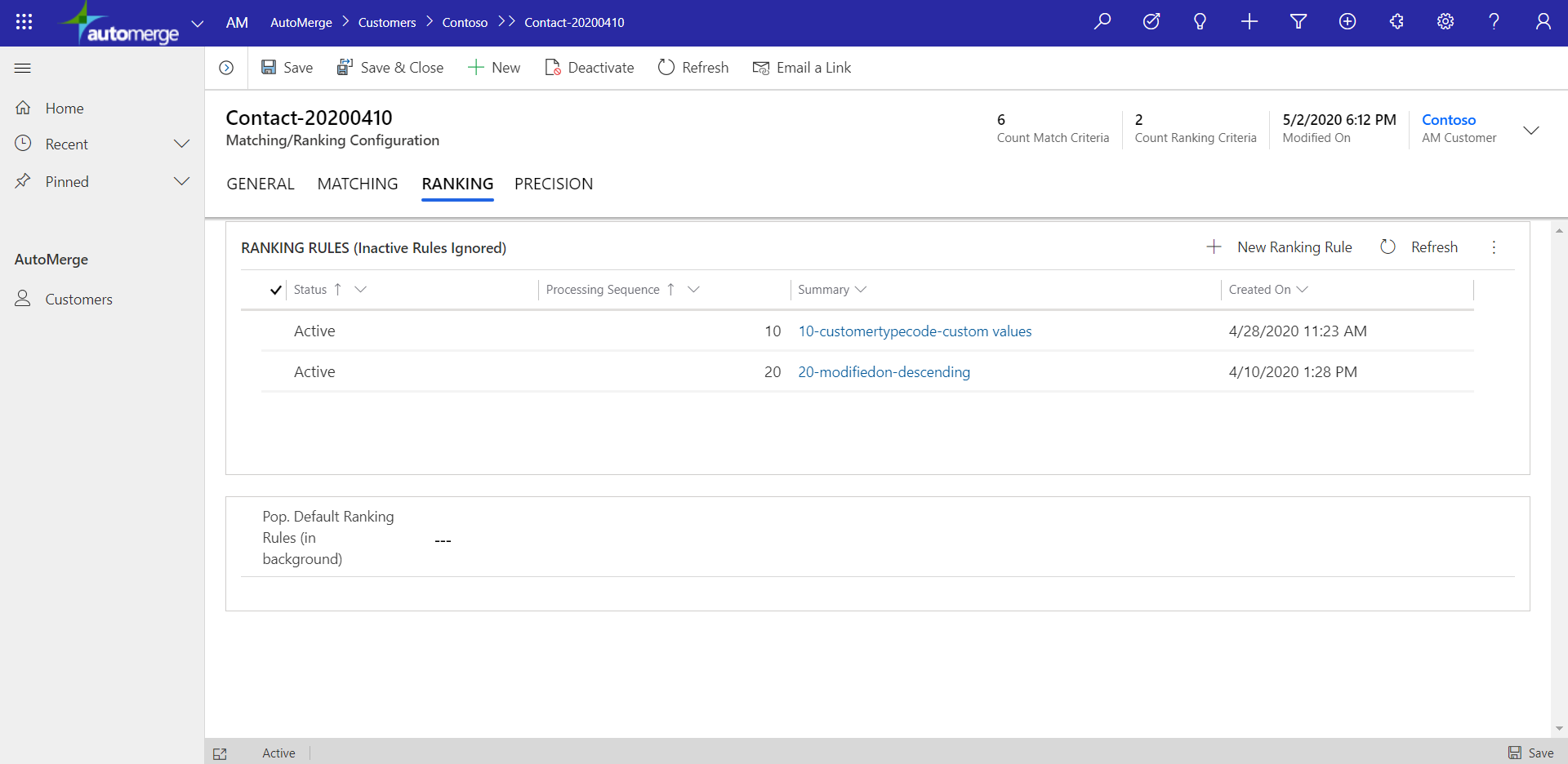
The RANKING tab holds the list of rules used to sort the members of a duplicate set. That order is how AutoMerge chooses the master record (sometimes called the golden record) when merging.
This matters because the record that wins, the one where Rank is #1, remains active after the AutoMerge operation in your CRM. All other records in the set (Rank > 1) are deactivated.
Automatic field preservation
During an AutoMerge of a duplicate set, any un-populated fields on the winner record are filled in with values found in the losing records. This is simple "non-NULL replaces a NULL" logic.
More complex, decision-based field preservation logic is possible using workflow rules. See Complex field preservation.
Example: ranking by customer type
In the Contact-XXXXXXXX record, we created a ranking rule on the customertypecode column to ensure contacts of a particular type (Customer) rank better than other types (Vendor).
In other words: a customer contact will always win an AutoMerge over a vendor contact.
If the first rule doesn't differentiate all duplicates in every set, the second rule applies and gives preference to the most recently modified contact.
Ranking can reach beyond the record
Ranking rules can look up a parent record's columns directly: its N:1 relationship to an account, for example. You might rank duplicate contacts by their parent account's industry code.
Reaching the other direction, down to 1:N/child records like Activities, Opportunities, or Cases, works differently. AutoMerge can't read those child records directly. Instead, your Dynamics 365 admin can create a rollup column (rollup field) on the parent table (Account, Contact, Lead) that summarizes the child records: a count, a sum, a max date, optionally filtered. That rollup column can then be referenced in a ranking rule like any other column.
For example: to rank accounts by closed revenue, your admin creates a rollup column on Account that sums the Actual Revenue of related Opportunities, filtered to Status = Closed. Once that rollup column exists, ranking rules can use it directly.
Two things to know about rollup columns: they're a customization made directly in your Dynamics 365 system, not in AutoMerge, and Dynamics takes about 12 hours to fully populate data into a new rollup column. Wait roughly a day after creating one before relying on it in a ranking rule.
Any column referenced this way, parent or rollup, must first exist in the Table Definition.
Recommended rule order
- Business meaning first. Record type, status, or lifecycle stage.
- Data completeness. Prefer the record with more populated columns.
- Recency last. Most recently modified, as the tiebreaker that always resolves.
Always end with a rule that guarantees a unique winner, or ranking within a set becomes arbitrary.
Was this page helpful?