The Table Definition
Every analysis-rules record links to a Table Definition: the list of columns the analysis is allowed to use.
A rule can only reference a column that is already in the Table Definition. Try to save a rule against a column that isn't, and you get an error. This is the most common source of frustration when authoring rules, so it's worth understanding before you start.
Microsoft now calls a CRM field a column, just as an entity is now a table. They mean the same thing. Some AutoMerge labels, such as Schemaname, Field Format, and Reference Field Name, still use the older word.
Why it exists
By default the analysis works with a small set of built-in name, address, phone, and email columns. Those cover the default rules and most typical CRM systems.
The moment you want to match, rank, or score on anything else, whether another built-in column or one of your own custom columns, you register it in the Table Definition first, then reference it in a rule.
Adding a column on the table definition
Open the analysis-rules record, follow the table link to its Table Definition, and add the column by its schema name, not its display label.
Then return to your matching, ranking, or precision rules and reference it.
Adding a column from a related parent record
Rules can reference columns on N:1 (parent) records, such as a contact's parent account.
For a related column, fill out these fields on its Column Definition record:
- Schemaname: the column's schema name as it exists on the related table (not on the main table being analyzed). For example, enter
name, to pull in the parent account's Account Name into a Contact's Table Definition. - Field Format: the related column's real format, e.g.
String. - Fuzzy Match Type: only when Field Format is
String, e.g.Company Name. Note not allStringtype columns will have a fuzzy match type. - Answer "Is this above Schemaname field from an N:1 related entity?" by filling in all three:
- Related Entity Name: the parent table's logical name, e.g.
account. - Related Entity Primary Key Field Name: that table's primary key, e.g.
accountid. - Related Entity Lookup Field Name: the schema name of the lookup column on the table under analysis that points to the parent record, e.g.
parentcustomerid.
- Related Entity Name: the parent table's logical name, e.g.
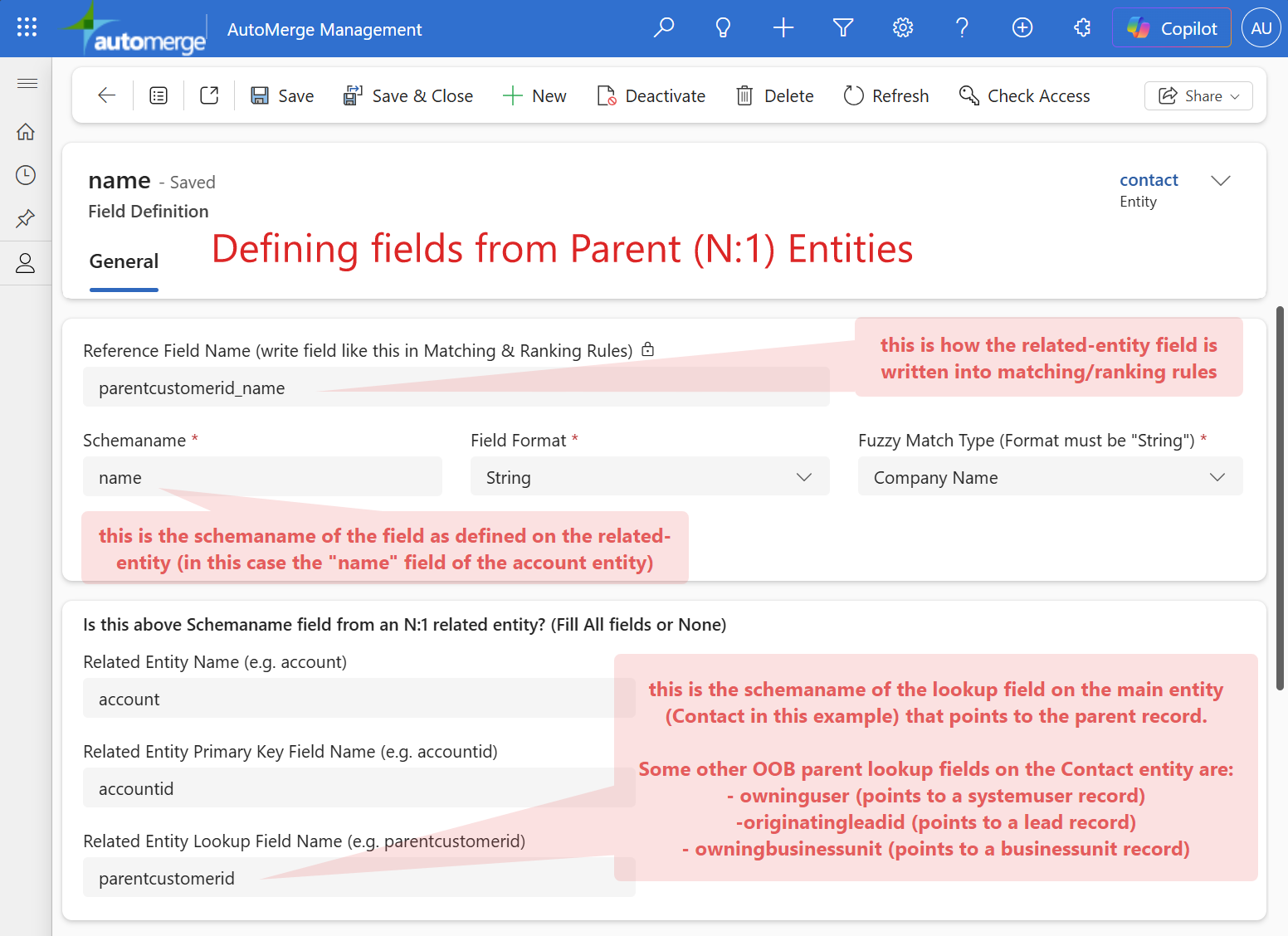
Once saved, the Reference Field Name shown at the top of the record (e.g. parentcustomerid_name) is how you write this column into your matching and ranking rules.
Other common out-of-the-box parent lookup columns on Contact you can use the same way: owninguser (points to a systemuser record), originatingleadid (points to a lead record), and owningbusinessunit (points to a businessunit record).
More examples
| On this table | Column you want | Schemaname | Field Format | Fuzzy Match Type | Related Entity Name | Related Entity Primary Key | Related Entity Lookup Field Name | Reference Field Name* |
|---|---|---|---|---|---|---|---|---|
| Lead | Owning business unit's name | name | String | (none) | businessunit | businessunitid | owningbusinessunit | owningbusinessunit_name |
| Account | Primary contact's email address | emailaddress1 | String | Email Address | contact | contactid | primarycontactid | primarycontactid_emailaddress1 |
| Contact | Parent account's industry | industrycode | Number | (none) | account | accountid | parentcustomerid | parentcustomerid_industrycode |
| Contact | Parent account's phone number | telephone1 | String | Phone Number | account | accountid | parentcustomerid | parentcustomerid_telephone1 |
| Contact | Owning user's enabled status | isdisabled | Number | (none) | systemuser | systemuserid | owninguser | owninguser_isdisabled |
| Contact | Parent account's website URL | websiteurl | String | (none) | account | accountid | parentcustomerid | parentcustomerid_websiteurl |
* Auto-generated: the Related Entity Lookup Field Name and the Schemaname, joined with an underscore. This is how this column is referenced in matching and ranking rules.
A shortcut worth knowing
A column needed only for your FetchXML filter does not need to be in the Table Definition at all.
If you're using a column purely to select which records get analyzed, and not for matching, ranking, or precision, you can reference it in the FetchXML filter and skip the Table Definition entirely.
That saves real time when your filter references several columns you have no intention of matching on.
Errors you might recognize
| Error | Cause |
|---|---|
| Error saving a rule that references a valid column | The column isn't in the Table Definition yet |
'Contact' Entity Doesn't Contain Attribute with Name = X when trying to AutoMerge a duplicate set. | A field in the preservation list was removed from the table. See common errors |
| Analysis returns fewer records than expected | Usually the FetchXML filter or the CRM-connection appuser's security roles |
Related
- Analysis-rules overview: the five parts of analysis-rules
- Matching rules: where column references are used most
- FetchXML filtering: the one place a column can skip registration
Was this page helpful?