Matching Rules
The MATCHING tab of an analysis-rules record holds the rules that find duplicates during an analysis.
The rules reference a particular table (Lead, Account, or Contact) and determine how the analysis engine finds duplicates in your Dynamics 365 CRM, using both exact and fuzzy matching.
The default rule set created under each analysis-rules record suits typical CRM systems using the usual built-in columns (fields). Columns that uniquely identify a person or a business (firstname, lastname, company name, telephone, email, street address) are the backbone of good rules for your dataset.
Finding your rules
Sign in to the Management App, open your Customer record, and switch to the Analysis Rules tab to see all your analysis-rules records. Open the one for the table you want.
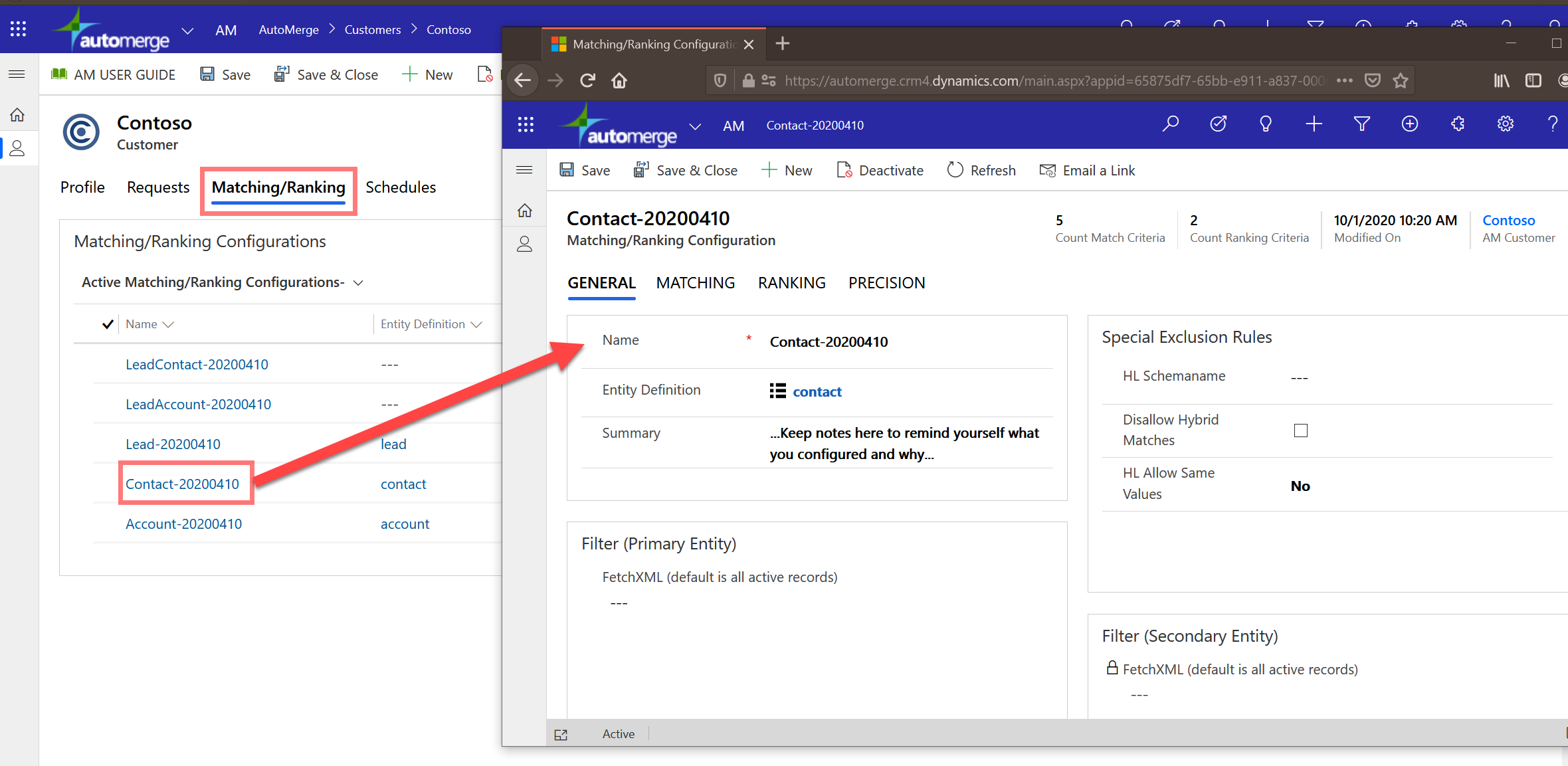
By default the analysis uses only a small set of built-in name, address, phone, and email columns.
If you are editing existing rules or creating new ones that reference any other column, built-in or custom, you must first add that column to the Table Definition. The table link on the analysis-rules record is where you do that.
You'll get an error if you reference a column that isn't in the Table Definition.
How rules are applied
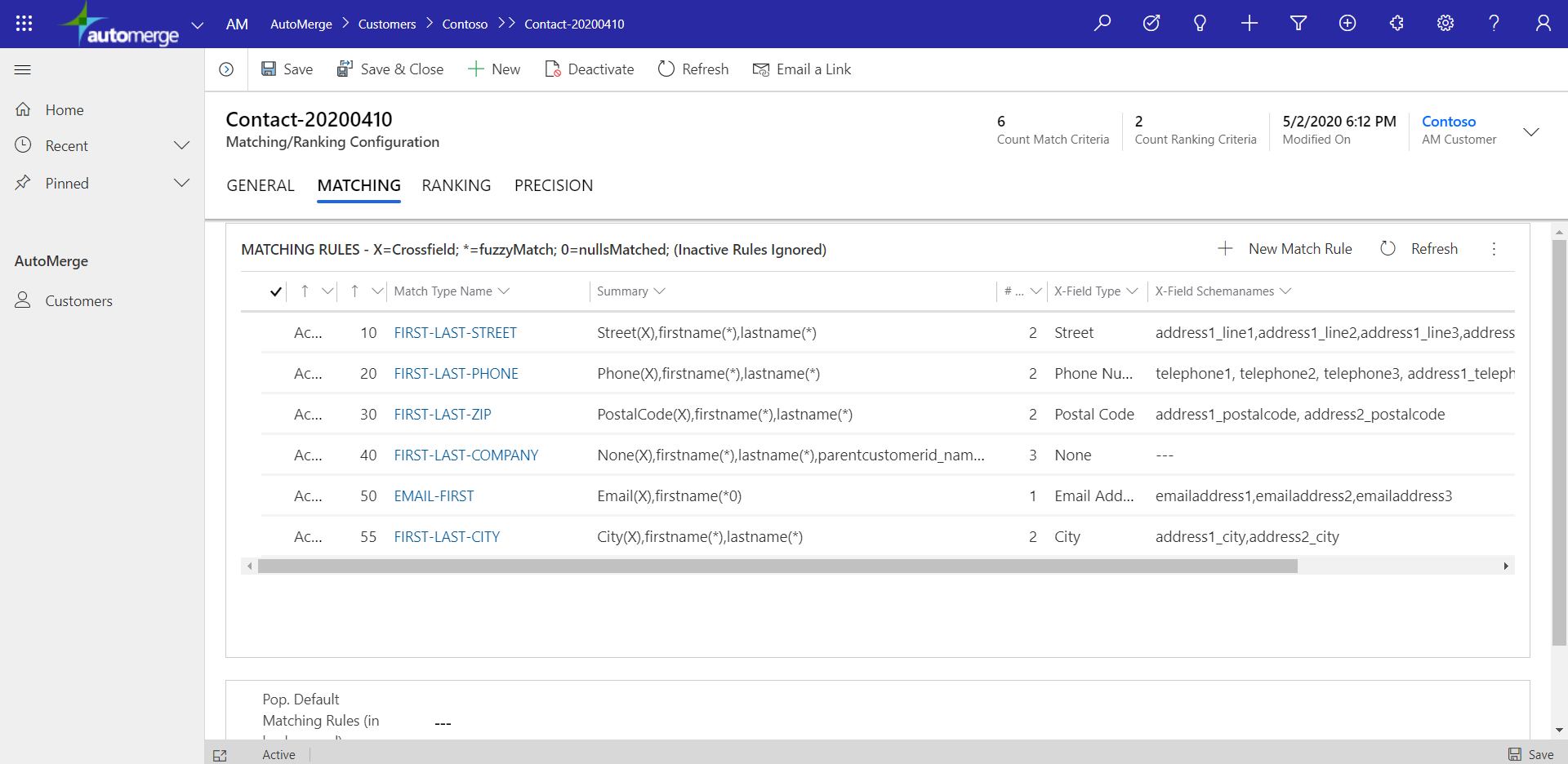
Active matching rules are applied to the filtered dataset in order of Processing Sequence, lower numbers first. When a match of two or more records is found, those records are tagged with that rule's Match Type Name.
Three consequences worth internalizing:
- Any number of rules can be defined, but each duplicate record belongs to only one match set.
- The Match Type Name is what your users see in the Match Type column of the dupes list views.
- To stop a rule applying, deactivate it rather than delete it. Deactivation is reversible.
The Summary column gives a concise one-line description of each rule, generated for you.
Anatomy of a match rule
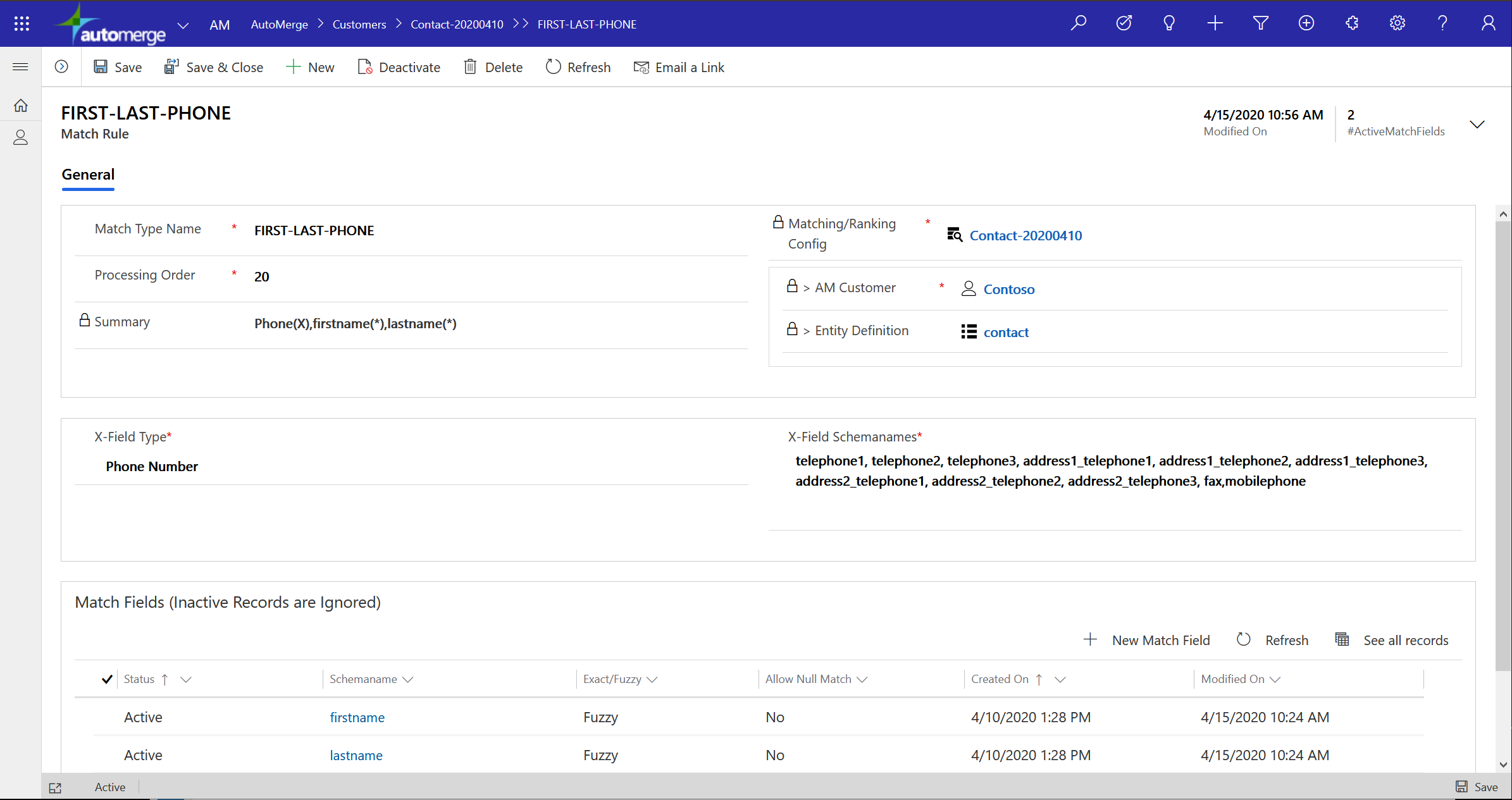
A match rule consists of an optional X-Field ("crossfield") plus up to 10 regular match fields, each with its own settings.
| Part | What it does |
|---|---|
| Match Type Name | The label applied to matches in your CRM during an Analysis → Tagging request |
| Processing Order | Sequence relative to other rules. Lower numbers process first. |
| Summary | Auto-generated one-line description |
| X-Field Type | Which kind of fuzzy matching to use on the X-Field schema names. Set to N/A if the rule needs no X-fields. |
| X-Field Schemanames | Comma-separated list of columns to search across for duplicates |
| Match fields | Up to 10, though one or two usually suffice |
Reading the Summary key
| Symbol | Meaning |
|---|---|
| X | Crossfield. There can only be one. |
| * | Fuzzy matching enabled on that column |
| 0 | That column can match on NULLs (empty values) |
When does a rule match?
Take a rule named FIRST-LAST-PHONE. A match succeeds when:
- Any of the X-fields of one record matches any of the X-fields of one or more other records, AND
- All of the active match fields in the list also match across those same records
Inactive match fields are ignored. Deactivating a match field is less permanent than deleting it.
Every schema name in the comma-separated X-Field list, and in the match fields subgrid, must be present in the Table Definition linked from the Analysis Rules record. Adding one that isn't there produces an error.
What crossfield matching is for
Real CRM data hides the same phone number in telephone1, telephone2, and mobilephone depending on who typed it. The same is true of email and street address columns.
A regular match field compares telephone1 to telephone1. An X-Field compares any listed phone column on one record to any listed phone column on another, which is how you catch the duplicate whose mobile number was entered in the business phone slot.
Ordering strategy
Because a record can only join one match set, precedence genuinely matters.
- Most confident, most specific rules first, such as an exact email match.
- Looser rules later, such as fuzzy name plus city.
That way a record is captured by the strongest applicable rule, and the Match Type your users see reflects the best available evidence.
Why one group can become two sets
A common report: four records that are obviously all duplicates of each other get tagged as two separate sets of two instead of one set of four.
That is the ordering rule doing exactly what it's designed to do. Rules apply in processing sequence, and once two records are claimed by an earlier rule they are no longer available to a later rule in that same pass. So different rules can each capture a different pair from what is really one group.
It resolves itself. AutoMerge both sets, then run another Analyze/Tag pass. The two surviving winners are still duplicates of each other, so the next applicable rule picks them up and they merge too.
Split sets look like a bug to someone reviewing duplicates for the first time. Knowing that a second pass consolidates them prevents a lot of unnecessary rule-fiddling.
Rules can reach related records
Matching rules can be based on columns from N:1 related records, such as a contact's parent account. The same is true of ranking and precision rules.
Analysis-rules snapshots
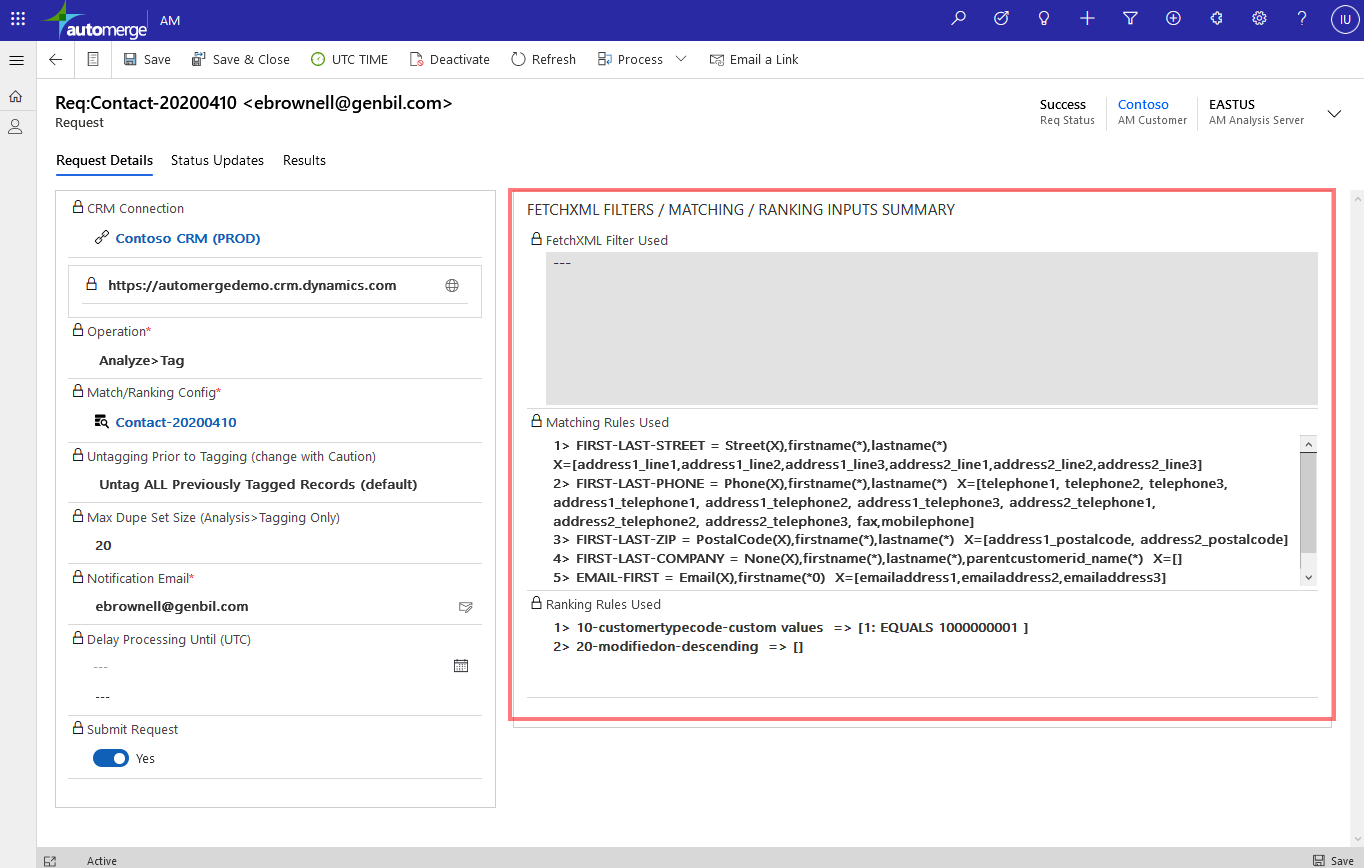
When you submit an Analysis → Tag request, a textual snapshot of the analysis-rules is captured with the request.
Because you can edit analysis-rules over time, that snapshot is your reference point for what the matching and ranking rules looked like at submit time, which is how you explain why last quarter's analysis produced different results.
Related
- Ranking rules: which record wins
- Precision rules: how confident the match is
- FetchXML filtering: which records get analyzed at all
Was this page helpful?