Install the AutoMerge Solution
The AutoMerge Managed Solution adds the components your CRM needs in order to view and merge already-tagged duplicate sets: the duplicate views, the AutoMerge ribbon buttons, the tagging fields, and the security roles.
Nothing else in this guide works until the solution is installed.
Repeat these steps for every CRM organization you want analyzed: Production, Sandbox/Dev, Sandbox/Test, and so on.
Before you start
- You need the built-in System Administrator security role in the target CRM.
- You do not need a paid AutoMerge subscription to install the solution.
Steps
1. Download the solution
Get the latest solution zip: Download AutoMerge_9_2_26_0114_managed.zip
Save the .zip file locally. Don't unzip it.
2. Sign in to your CRM
Log in as a user with the System Administrator security role.
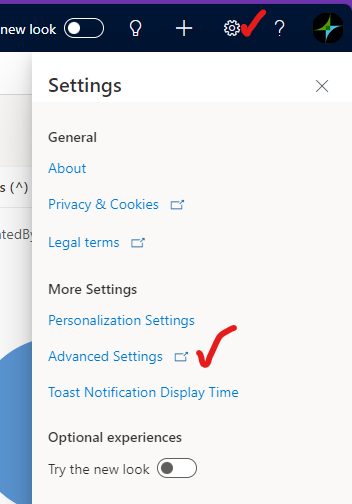
3. Open Advanced Settings
In the main CRM window, click the cog icon at the upper right, then choose Advanced Settings.
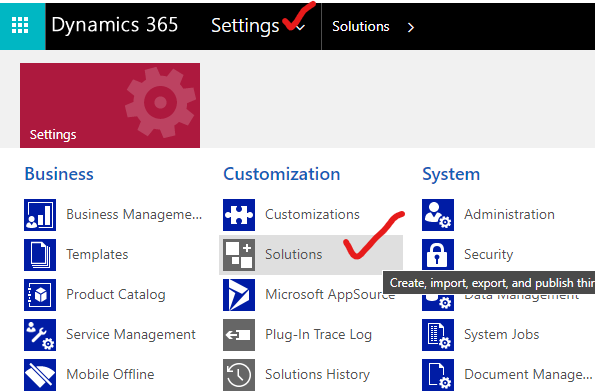
4. Go to Solutions
Within Settings, open the Solutions area.
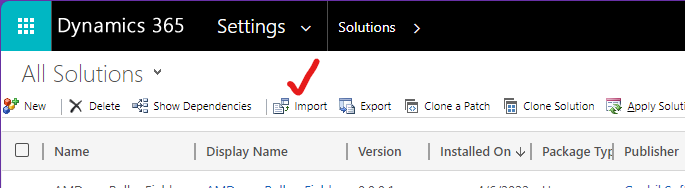
5. Click Import
6. Choose the zip file
In the Import wizard, browse to the solution zip you downloaded and click Next.
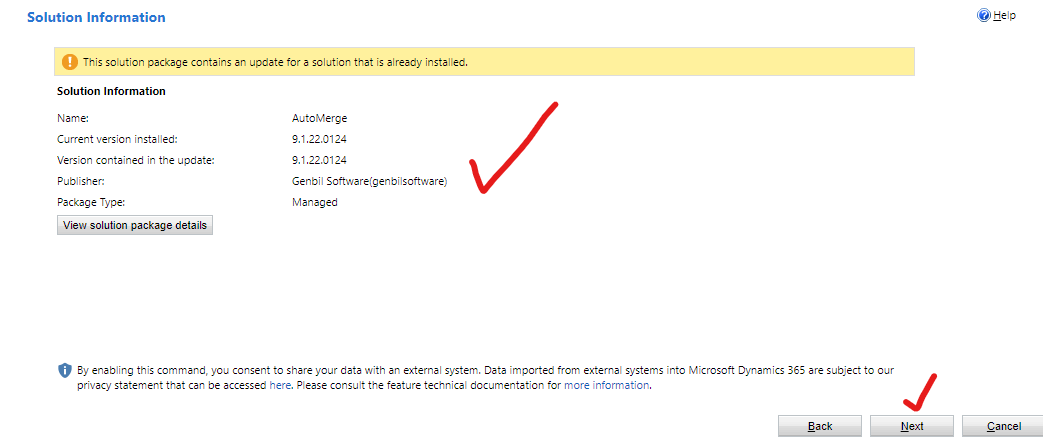
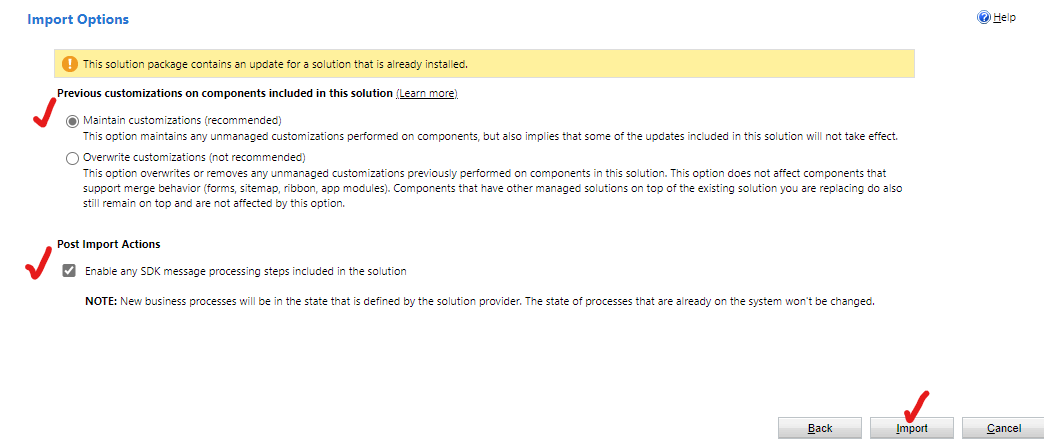
7. Accept the defaults and import
Accept the default import options and click Import.
That's it
Wait for the import to complete successfully. Because this is a managed solution, there's no need to publish customizations afterward.
What you get
| Component | Why it matters |
|---|---|
| Duplicate views | The AM Dupes and AM History views described in Finding duplicates |
| Ribbon buttons | AutoMerge, AutoMerge Set Primary, AutoMerge Ignore |
| Tagging fields | Where the analysis writes rank, precision, and match type |
| Security roles | Including AutoMerge Analysis/Tagging AppUser - Minimum Privs, needed for the Azure app user, and AutoMerge User, which lets end users see the AutoMerge button |
| Dormant plugins | Including the one behind AM ModifiedOn |
Next steps
- Administrators: set up the Azure app user so the AutoMerge service can connect to this organization.
- Everyone else: once an analysis has run, start at the dashboard view.