AM ModifiedOn and Watch Fields
The problem with the built-in modifiedon
Dynamics' out-of-the-box modifiedon field tells you when any change was last made to a record. The platform maintains it for every built-in and custom entity.
That sounds useful until you notice two things:
- Any update refreshes it: end user, plugin, workflow, or integration.
- Even writing a field back to the same value it already held updates it.
So a badly-designed nightly integration that rewrites unchanged data will keep every record looking freshly modified. When did the record actually change? You can't tell.
The browser app won't send an unchanged field back to the server, so you can't reproduce this by hand. Create a workflow rule that sets a field to itself, or bulk-edit two or more records to write a field back to its existing value.
This matters most for ranking rules. If you want the most recently updated record to win a merge, modifiedon is not a trustworthy signal.
AutoMerge itself is part of the problem
Worth being direct about: our own tagging process updates modifiedon on the records it touches. By the time you look at that field to judge recency, it no longer reflects genuine human or business activity. The measuring device has tainted the measurement.
That is the honest reason this alternative exists.
The alternative
AM ModifiedOn (gnb_automergemodifiedon) tracks changes to a custom set of fields, called "watch fields", on any entity. It works with a plugin in the managed solution that fires only when a value is genuinely different from what was there before, or has been cleared.
For ranking purposes you usually only care about a handful of fields: firstname, lastname, mobilephone, emailaddress1. Those are your watch fields.
Should you use it?
Not everyone needs this, which is why it isn't switched on by default.
There is no single best-practice ranking field that works for every organization. Some customers deliberately prefer the earliest createdon, on the reasoning that the oldest record carries the most history and the most related records. Others rank on business meaning entirely and never use a date field as more than a tiebreaker.
Reach for AM ModifiedOn when genuine recency of change is the signal you want and the built-in field has stopped telling you that. If you're ranking on something else already, skip it.
Prerequisites
- The AutoMerge Managed Solution installed. It contains the normally-dormant plugin. A paid subscription is not required to install the solution.
- The official Dynamics CRM Plugin Registration tool.
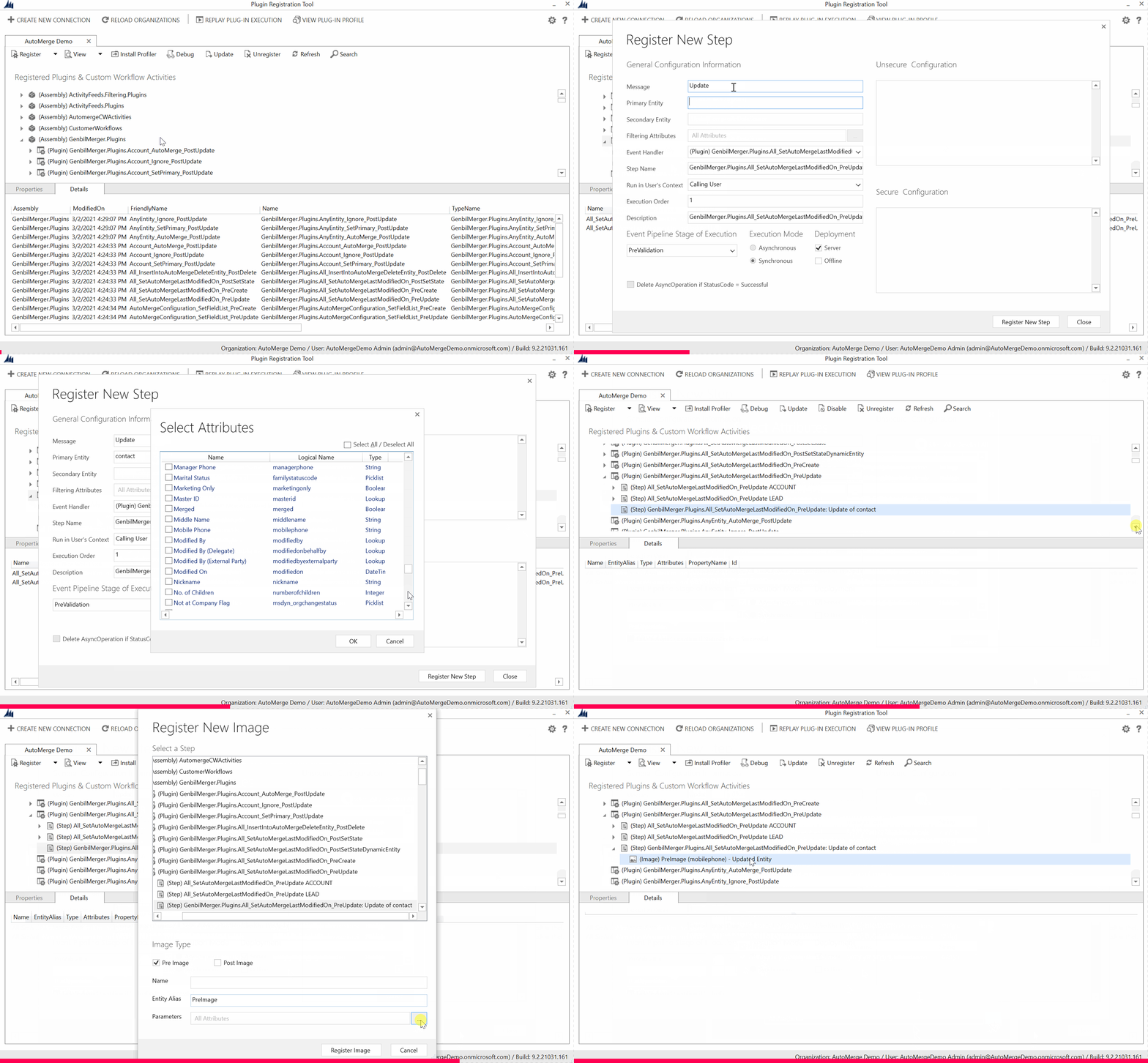
Step 1. Register the Update step
- Open the Plugin Registration tool and connect to your CRM org as a System Administrator.
- Find (Assembly) GenbilMerger.Plugins and expand it.
- Find (Plugin) GenbilMerger.Plugins.All_SetAutoMergeLastModifiedOn_PreUpdate.
- Right-click it and choose Register New Step.
- Complete the dialog exactly as follows:
| Setting | Value |
|---|---|
| Message | Update |
| Primary Entity | Contact (or the entity you're tracking) |
| Secondary Entity | (leave empty) |
| Filtering Attributes | The fields you want to track |
| Event Handler | leave default |
| Step Name | leave default |
| Run in User's Context | Calling User |
| Execution Order | 1 |
| Description | leave default |
| Event Pipeline Stage of Execution | PreValidation |
| Execution Mode | Synchronous |
| Deployment | Server only |
- Click Register New Step.
It isn't strictly required, but firing a plugin on updates to any field wastes resources. Restrict it to the fields you actually watch.
Register the pre-image
Right-click the step you just created and choose Register New Image:
| Setting | Value |
|---|---|
| Image Type | Pre Image |
| Name | (leave blank) |
| Entity Alias | PreImage |
| Parameters | The fields you want to track |
Step 2. Register the Create step
Nearly identical, with three differences highlighted below.
- In the Plugin Registration tool, expand (Assembly) GenbilMerger.Plugins.
- Find (Plugin) GenbilMerger.Plugins.All_SetAutoMergeLastModifiedOn_PreCreate. Note
PreCreate, notPreUpdate. - Right-click → Register New Step.
| Setting | Value |
|---|---|
| Message | Create |
| Primary Entity | Contact (or your entity) |
| Secondary Entity | (leave empty) |
| Filtering Attributes | not applicable to the Create event |
| Event Handler | leave default |
| Step Name | leave default |
| Run in User's Context | Calling User |
| Execution Order | 1 |
| Description | leave default |
| Event Pipeline Stage of Execution | PreOperation |
| Execution Mode | Synchronous |
| Deployment | Server only |
- Click Register New Step.
No pre-image is needed for the Create event.
Step 3. Define the watch-field list
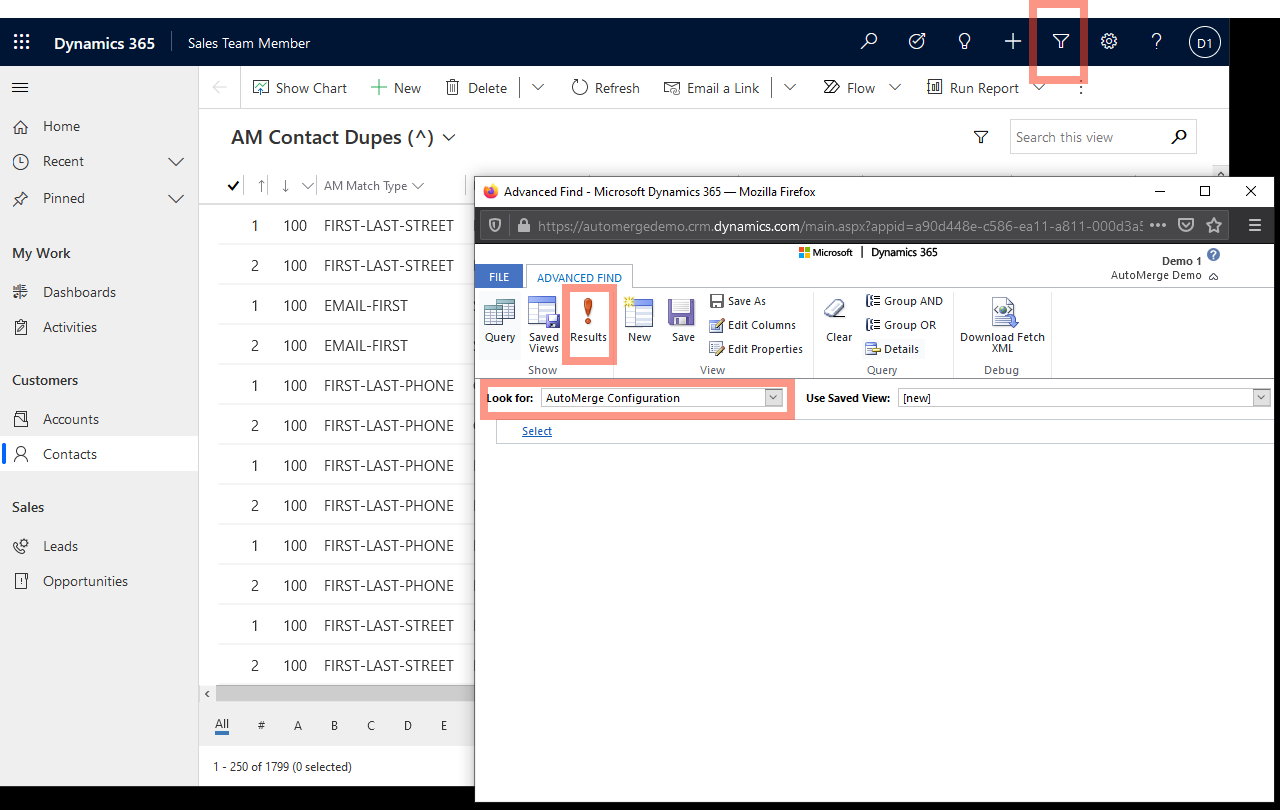
When those plugin steps fire, they look for a watch-field AutoMerge Configuration record associated with the entity.
-
Open Advanced Find and search for AutoMerge Configuration records. No filter criteria needed.
-
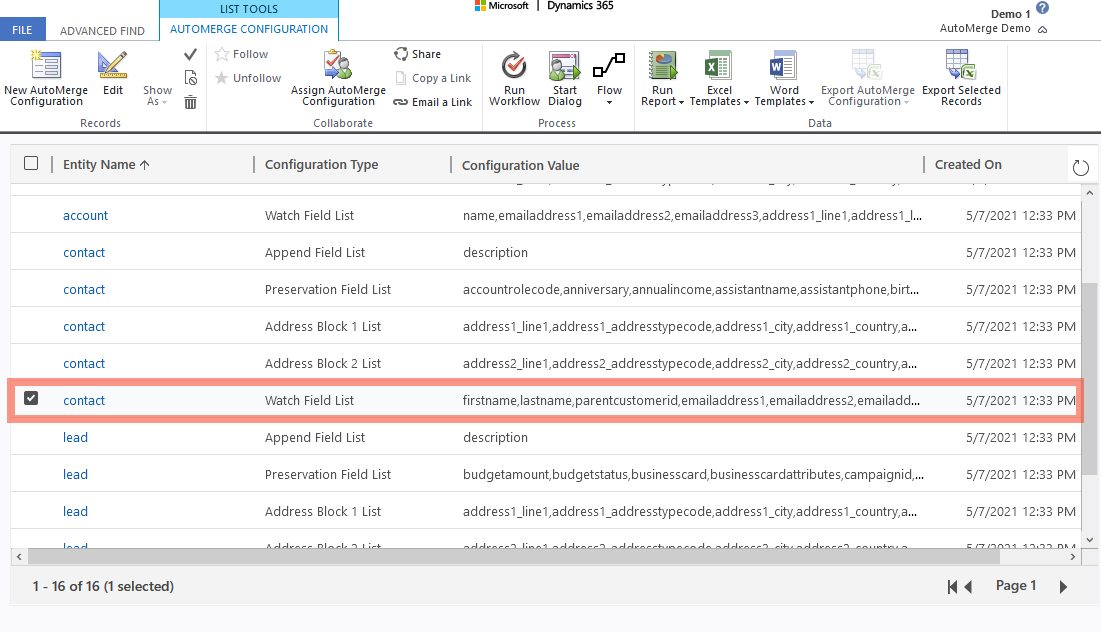
Open the Contact-Watchfield-List record, or create one if it doesn't exist.
-
Enter a comma-separated list of schema names for the fields you want to watch.
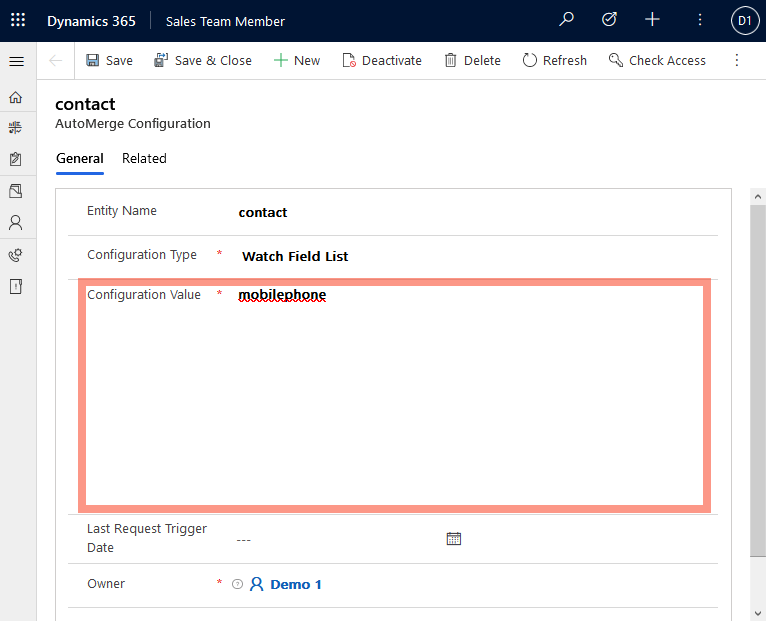
With an active AutoMerge subscription you'll find default watch-field records for Account, Contact, and Lead already in place. Edit those, or create your own.
That's it. New records initialize am_automergemodifiedon to their create date, and from then on the field updates only when a watched field changes to a new value or is cleared.
Backfilling existing records
Records that existed before you set this up will have an empty am_automergemodifiedon. If you want them initialized, to createdon for example, you have to do it yourself.
Do it yourself: build a workflow or Power Automate flow that copies createdon into am_automergemodifiedon, then trigger it across a defined record set with XrmToolBox's Bulk Workflow Execution tool.
Or let us do it. With an active subscription, contact us and describe in plain terms how you want the field initialized. We can populate it from any date field on the entity, from a parent (N:1) entity, or an offset thereof. Most any date logic you can describe.